Appearance
Sync Manager
Module: Sync Manager Where to find it: Inside a site → site menu (the apps grid icon) → Sync Manager. Scope: Per site. Each sync moves content from one environment to another (e.g. Development → Production). Who should read this: Administrators who promote content between environments (e.g. push work from Development up to Production).
1. Overview
Sync Manager copies content from a source environment to a target environment — for example, promoting pages, menus, forms, and data you built in Development up to Production.
You work through a sync queue: create a queue (source → target + a label), add the items you want to move (grouped by content type), then Start Sync to run everything in one pass. A queue records its status and the source/target environments so you have a history of what was promoted and when.
A starter template applied to Development is ordinary content from then on, and travels to Production through a sync queue like anything else.
Two ideas to keep straight before you start:
- Versions — Pages, Layouts, and Shared Elements are versioned, and syncing one ships a specific version that lands unpublished in the target. See §6.
- Dependencies — Sync does not chase down what an item depends on. If a page uses a menu, a layout, a shared element, a localization group, or a data category, you must add those to the same queue too. See §7.
2. Prerequisites
- The site must have at least two environments (source and target) configured under Sites.
- Sync Manager is governed by a single privilege:
| Action | Privilege |
|---|---|
| Use Sync Manager (view, create, run, delete queues) | Can Start Sync Data (CSSD) |
3. The Sync Manager list
Open Sync Manager. You see the history of sync queues for this site.
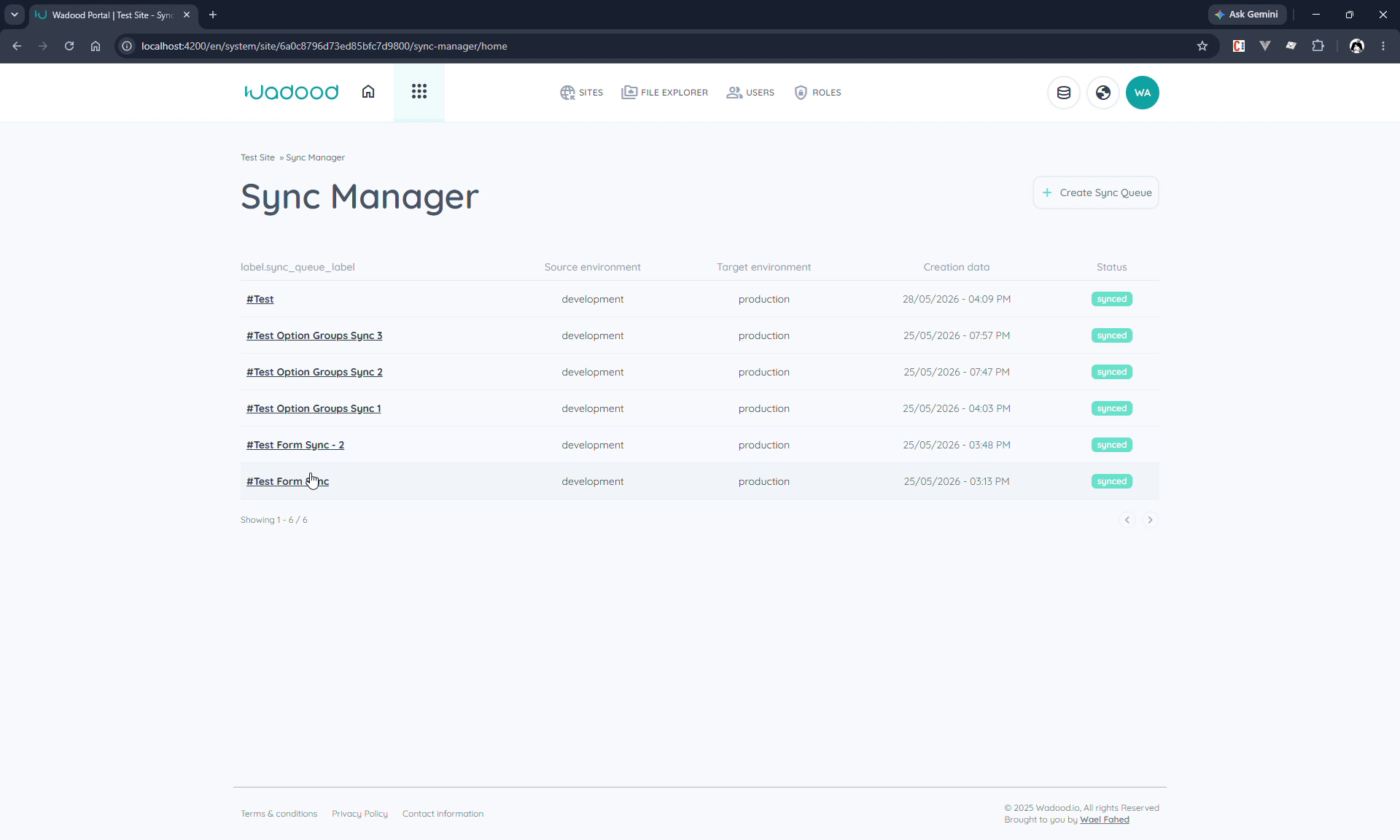
Each row shows the queue's label, source environment, target environment, creation date, and status:
| Status | Meaning |
|---|---|
| pending | Created, items can still be added/removed; not yet run. |
| inprogress | A sync run is currently executing. |
| synced | The run completed. |
| failed | The run hit an error (it can be retried). |
A queue can only be deleted while it's still pending.
4. Creating a sync queue
Click Create Sync Queue and set:
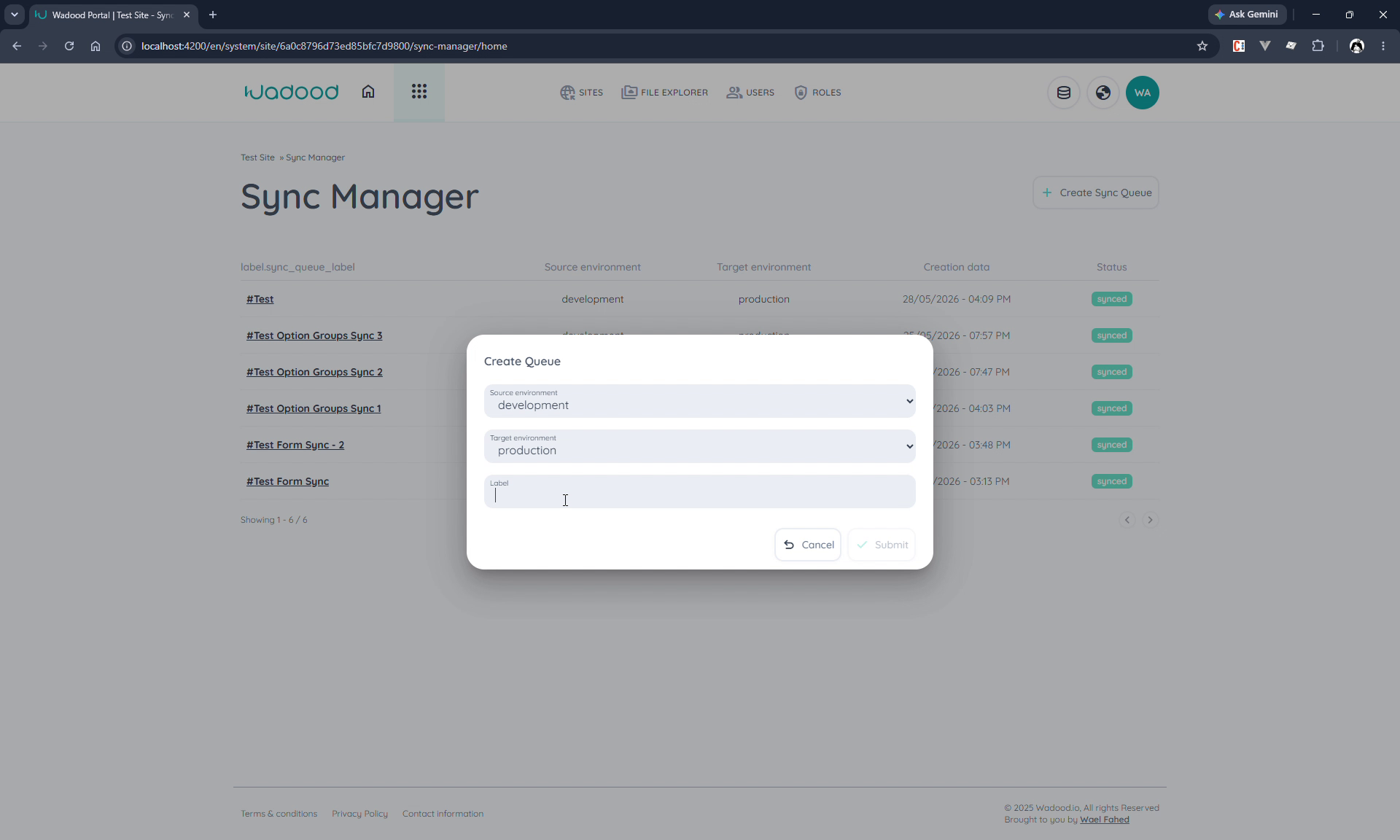
| Field | Notes |
|---|---|
| Source environment | Where the content comes from (e.g. development). |
| Target environment | Where the content goes to (e.g. production). |
| Label | A free-text name for your own reference (e.g. "sync July 1st"). |
Submit to open the queue's detail screen.
5. Adding items to the queue
The detail screen groups everything you can sync by content type. Each section has a counter and a + (or list icon) to add items.
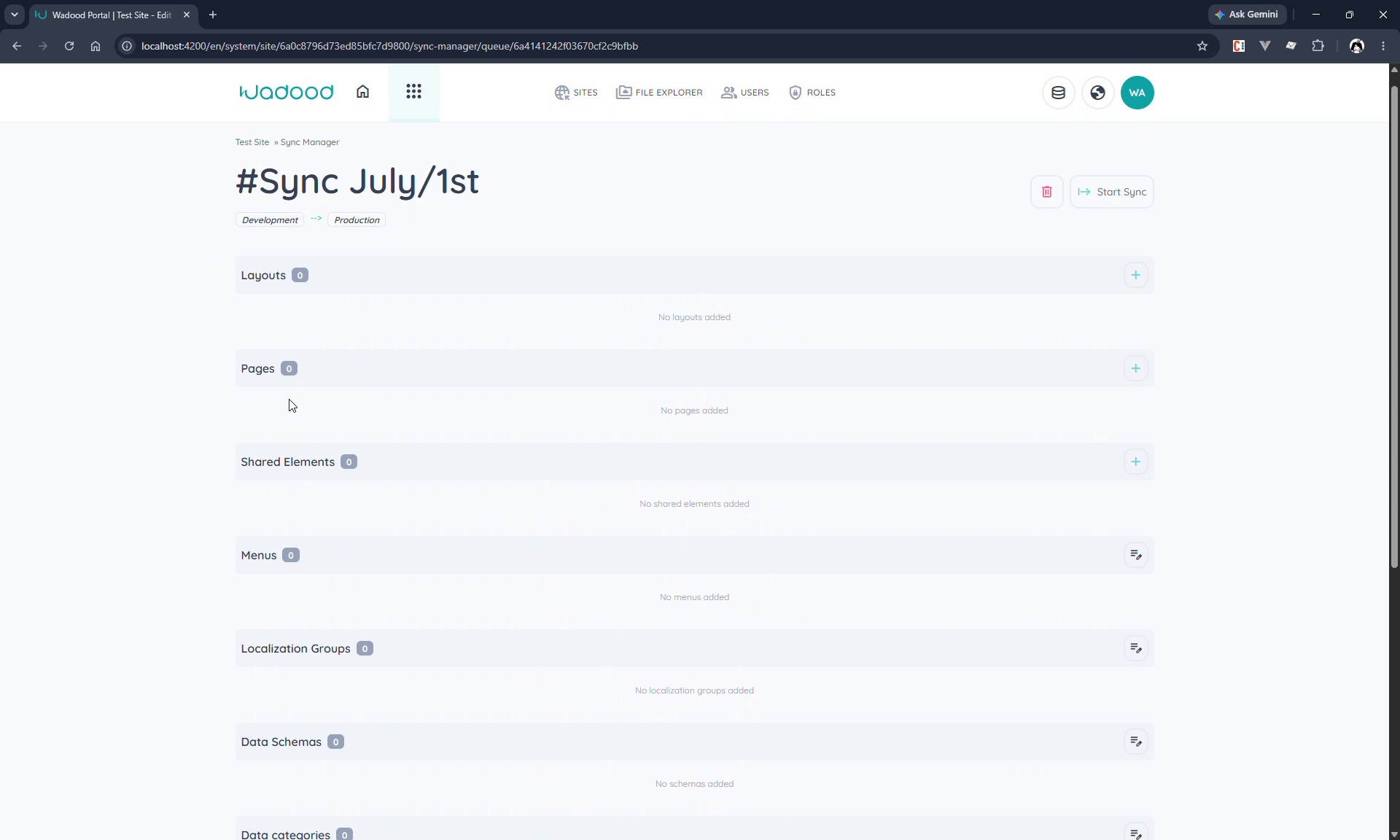
| Content type | Selection |
|---|---|
| Layouts | Single-select (one item, with version — see §6) |
| Pages | Single-select (with language + version) |
| Shared Elements | Single-select (with version) |
| Menus | Multi-select |
| Localization Groups | Multi-select |
| Data Schemas | Multi-select |
| Data Categories | Multi-select |
| Data Items | Multi-select |
| Forms | Multi-select |
| Option Groups | Multi-select |
Only Pages, Layouts, and Shared Elements are single-select — because each carries versions and you sync one specific version at a time. Everything else is multi-select.
Adding a Page (the version‑bearing flow)
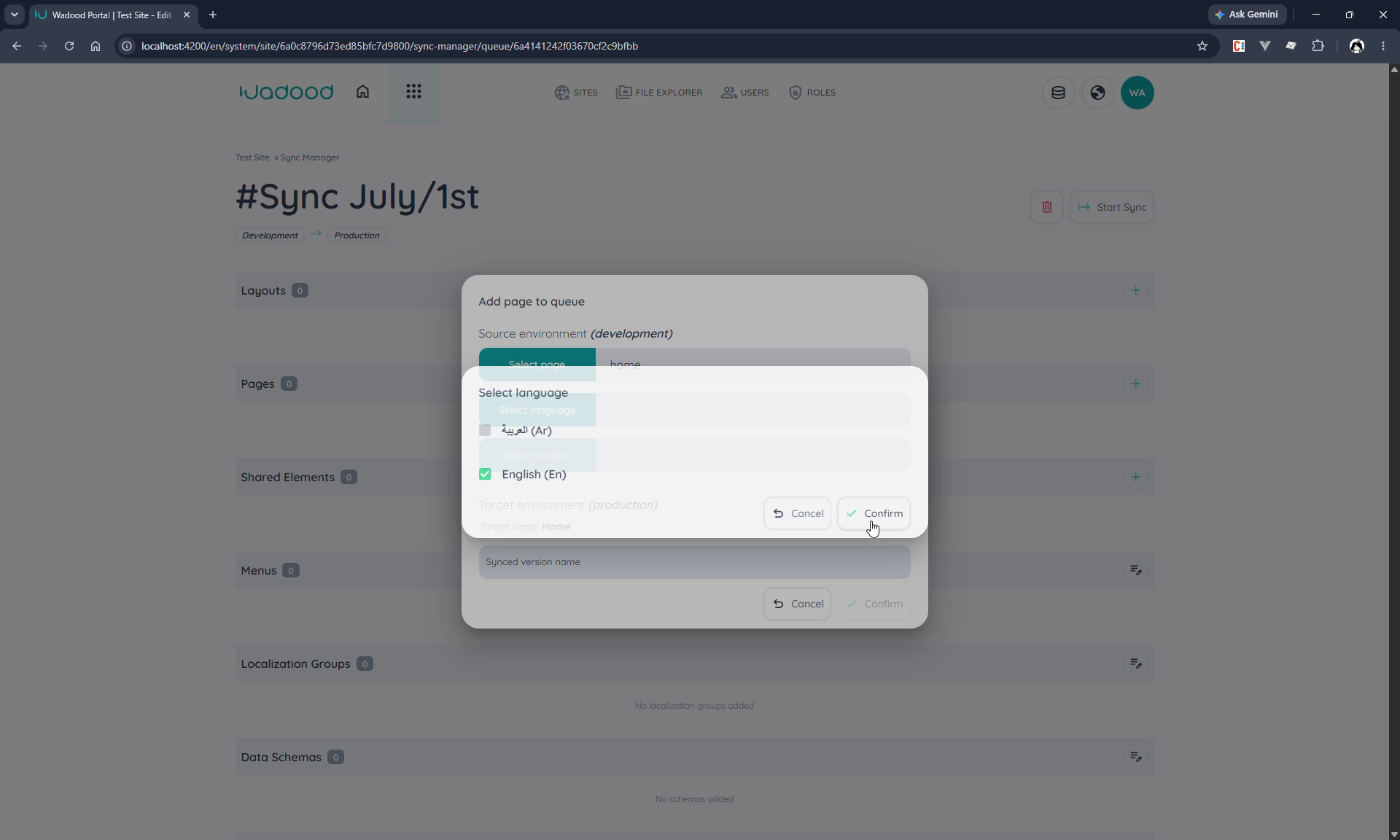
- Select page — pick the page (single).
- Select language — pick one language (e.g. English). This is a single choice, not multi.
- Select version — choose which version of the page to ship (e.g. the published one).
- Synced version name — name the version that will be created in the target (e.g. "sync 1").
Confirm to add it. Layouts and Shared Elements follow the same version + name pattern. The multi-select types (menus, data, forms, option groups, etc.) just open a dialog where you tick the items you want.
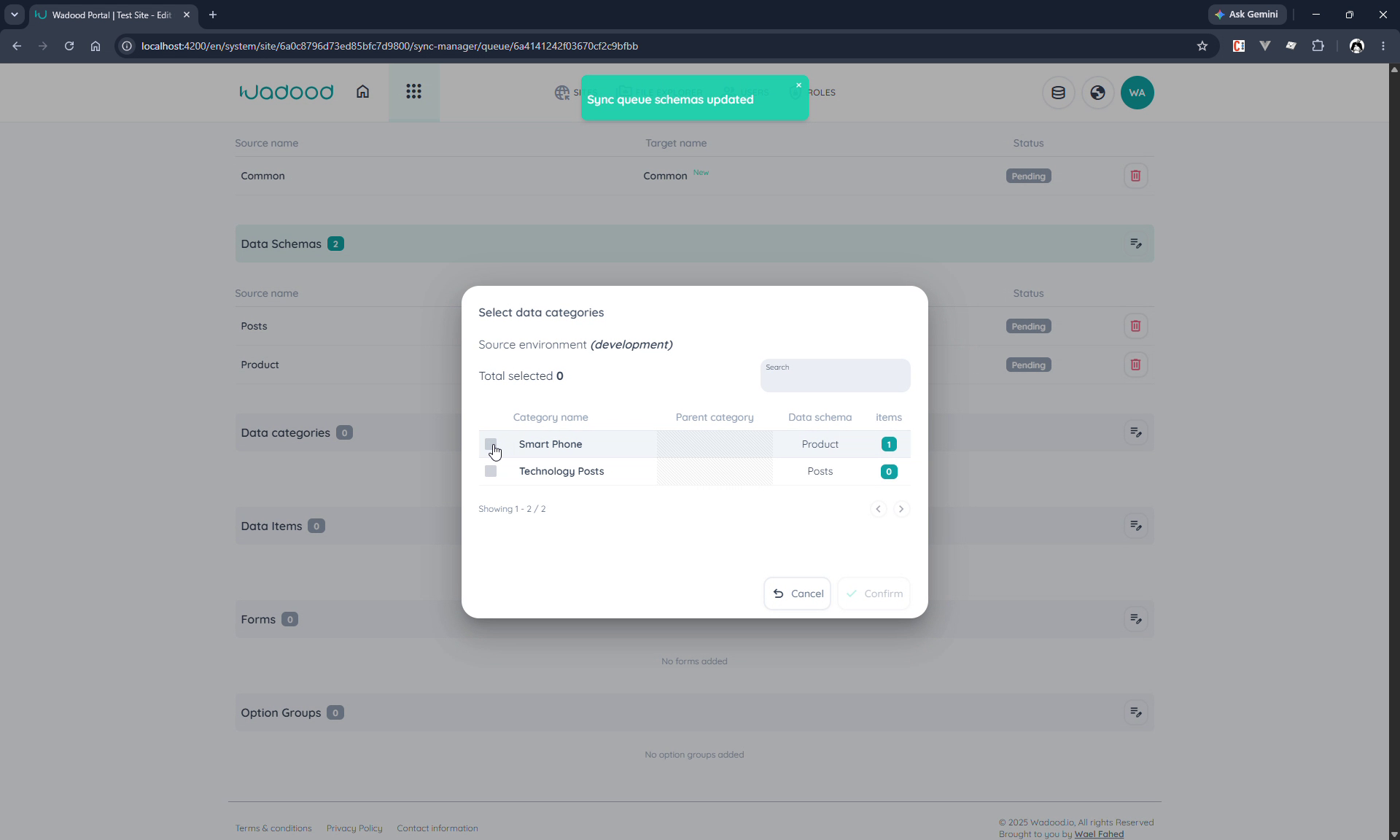
As you add items, each section fills in with Source name → Target name rows and a per-item status (Pending until the run). A New badge on the target name means the item doesn't exist in the target yet and will be created.
6. Versions and the publish step (important)
This is the part most easily missed, so it's worth understanding the model:
Pages, Layouts, and Shared Elements are versioned. A single source can have many versions, but only one is published (served to live visitors). Separately, each admin has an active version — the one they're currently viewing/editing — and a version must be locked by an admin to be edited (so two admins can't edit the same version at once).
What sync does with versions: when you sync a page/layout/shared‑element version, Sync Manager creates a brand‑new version in the target (named by your Synced version name) containing the source version's elements, settings, and styling. It does not publish it, and it does not make it active. The new version simply exists in the target.
➡️ After the sync completes, go to the page / layout / shared element in the target environment and PUBLISH the version you want to go live. Sync delivers the content; publishing is a separate, deliberate step you perform in the target. Until you publish it, live visitors won't see the synced version.
(The versioning lifecycle — creating plain vs. cloned versions, locking, switching the active version, and publishing — is covered in depth in the Pages, Layouts, and Shared Elements guides.)
7. Dependencies: sync everything an item needs
Sync does not automatically resolve dependencies. If you sync an item but leave out something it relies on, the target copy will be incomplete or broken. Always add dependencies to the same queue. Common chains:
| If you sync… | Also sync… |
|---|---|
| A page that uses a menu | that menu |
| A page/menu with localization keywords | the localization group(s) |
| A page that embeds a shared element | that shared element |
| A page that uses a layout | that layout |
| A dynamic page bound to data | the data schema, data category, and data items |
| A form that uses option groups | those option groups |
Rule of thumb: walk the item's references and make sure each one is either already present in the target or included in this queue.
8. Running the sync
Click Start Sync. The queue status moves to inprogress, and the content types are processed one by one (templates → pages → shared elements → menus → localization → forms → option groups → data schemas → categories → items). When it finishes, the queue shows synced and each item shows its result.
Storage note: syncing page/layout/shared-element versions consumes the client's storage allowance (a version has a size). If there isn't enough free storage for the selected versions, the run stops for that step — free up space or reduce what you're syncing.
After a successful run, remember the publish step from §6 for any page/layout/shared-element versions you intend to make live.
9. Tips & common pitfalls
- Sync ≠ publish. Promoting a page version puts it in the target unpublished. Publish it there to make it live.
- Bundle dependencies. A form without its option groups, or a page without its menu/layout/shared element/data, will land incomplete. Put them in the same queue.
- One language per page item. The page/layout/shared-element flow syncs a single language at a time — add the item again for another language.
- Name your synced versions meaningfully (e.g. "sync July 1st") so you can recognise them in the target's version list when you go to publish.
- You can only delete a queue while it's pending — once run, it stays as a record.
- Re-running a failed queue is allowed (a failed queue can be started again).