Appearance
Pages (Part 1) — Creating pages & the page builder
Module: Pages Where to find it: Inside a site → site menu (the apps grid icon) → Pages (or the site dashboard hot‑links). Scope: Per site and per environment — pick the environment tab before working. Who should read this: Administrators who build the actual web pages of a site.
Pages is a large module, split across several guides. This part covers creating a page, page metadata, and a tour of the page builder (the visual editor). Versions, languages in depth, and dynamic pages each get their own guide — they're only referenced here.
1. Overview
A Page is a website page. Each page belongs to a site and an environment, and has:
- a type — Static (a fixed page like a home or about page) or Dynamic (a page driven by URL parameters and data — covered in a later guide);
- one or more languages, each with its own URL root slug and title tag;
- metadata (per language);
- and a built UI made of versions (covered in a later guide) that you edit in the page builder.
Pages are environment‑scoped and promote between environments through the Sync Manager — remember that syncing a page ships an unpublished version you must publish in the target.
2. Prerequisites
- A site with at least one environment and its languages configured (under Sites) — the page's language options come from the site's active languages.
- Pages use several privilege groups:
| Action | Privilege |
|---|---|
| View pages | Can View Pages (CVP) |
| Add a page | Can Add Pages (CAP) |
| Edit a page | Can Edit Pages (CEP) |
| Delete a page | Can Delete Pages (CDP) |
| View the page builder (UI) | Can View Pages UI (CVPUI) |
| Edit the page builder (UI) | Can Edit Pages UI (CEPUI) |
| Add / Edit / Delete versions | CAPV / CEPV / CDPV |
3. The Pages list
Open Pages, pick the environment tab, and use Available / Deleted, search, and Create page.
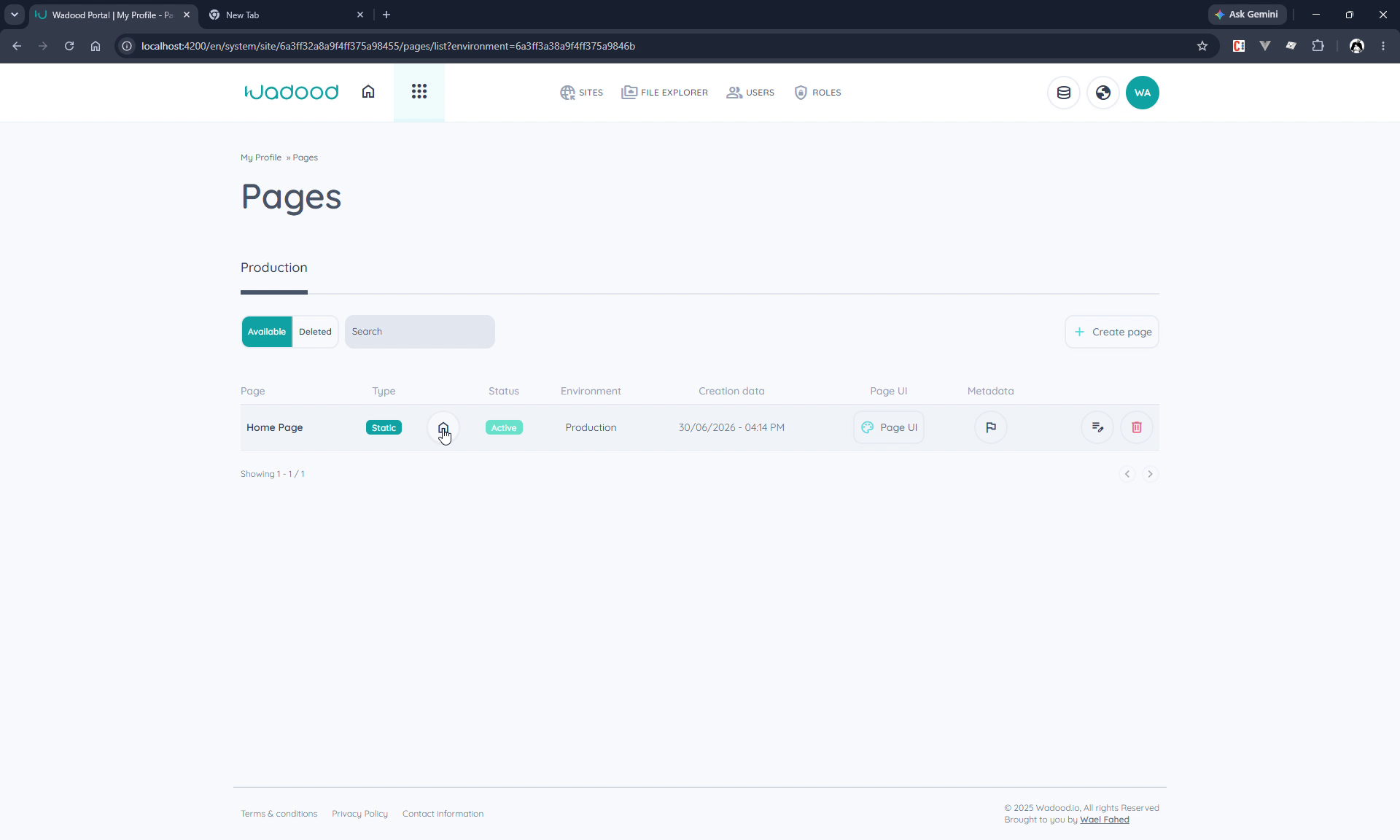
Each row shows the page name, Type (Static/Dynamic), Status, Environment, Creation date, and a set of actions:
| Action | What it does |
|---|---|
| Make home page (flag) | Marks this page as the site's default page for the environment — see §4.4. Static pages only. |
| Page UI | Opens the page builder (see §6). |
| Metadata | Opens the per‑language metadata editor (see §5). |
| Edit | Re‑opens the create form, pre‑filled. |
| Delete | Soft‑deletes (restored from the Deleted tab); permanent delete is also available. |
When the selected environment has no pages at all (the Available view, with no search), users who can edit sites see a Start from a starter template panel above the list — see Starter templates.
4. Creating a page
Click Create page. The form is grouped into Basic Info, Layout, (URL Parameters for dynamic), and Page languages.
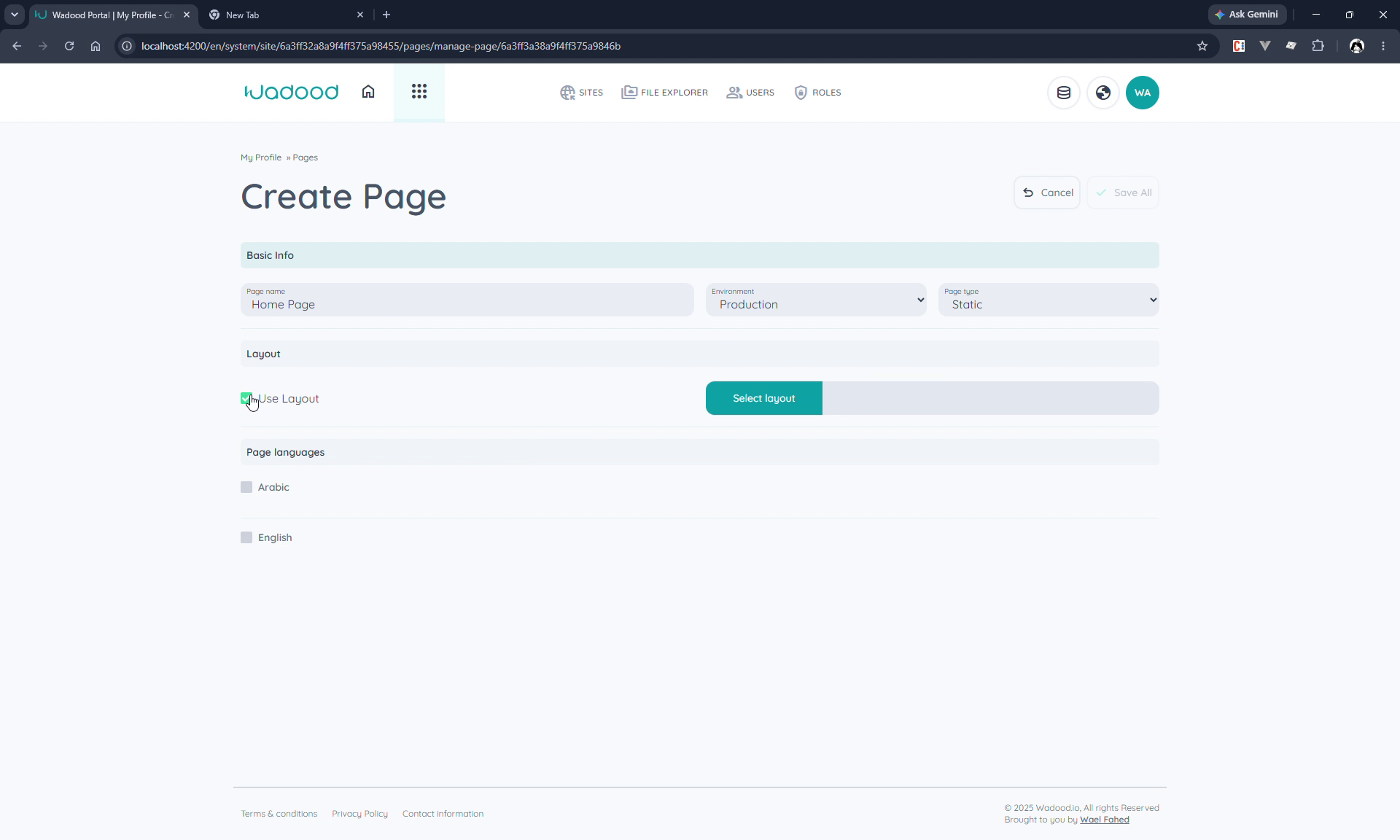
4.1 Basic Info
| Field | Notes |
|---|---|
| Page name | A reference name for admins (e.g. "Home Page"). |
| Environment | The environment the page is created in (fixed to the one you're working in). |
| Page type | Static or Dynamic. This guide focuses on Static; dynamic pages are covered in a later guide. |
4.2 Layout (Use Layout)
Tick Use Layout to base the page on a Layout (think of it like an Angular router outlet / shared shell that wraps the page), then pick the layout. Leave it off for a standalone page. (Layouts get their own guide — leave this off until then.)
4.3 Page languages
The languages shown here are the site's active languages (e.g. Arabic + English; a language turned off for the site won't appear). Tick each language the page should support and fill:
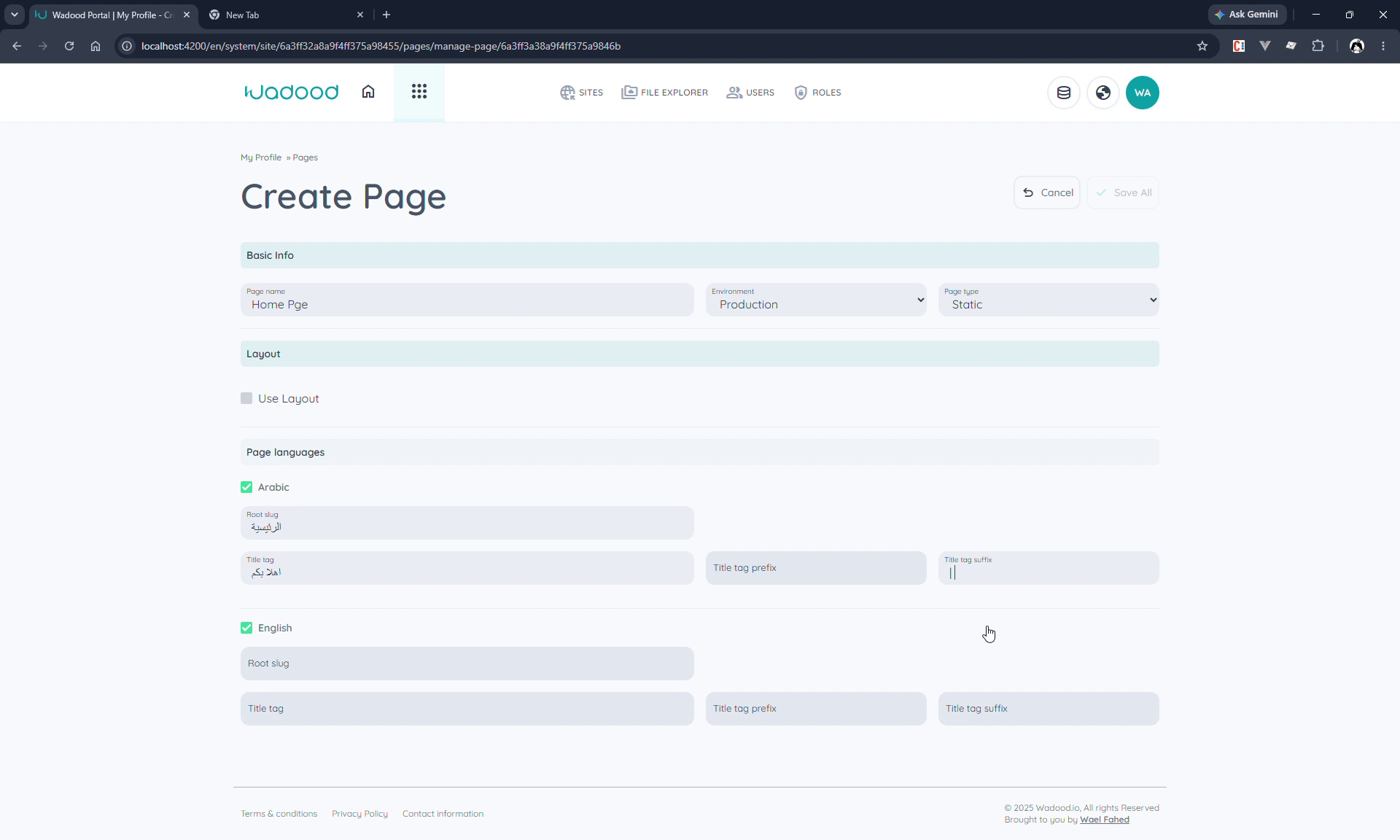
| Field | Notes |
|---|---|
| Root slug | The URL segment for this language (e.g. home), producing routes like /en/home and /ar/home. |
| Title tag | The page's <title> text for that language (e.g. "Welcome to my profile"). |
| Title tag prefix / suffix | Optional text wrapped around the title (e.g. a suffix ` |
Click Save All. The new page appears in the list as Static / Active.
For a dynamic page, a URL Parameters section appears (and the title tag can be driven from a data category instead of typed). That flow is deferred to the dynamic‑pages guide.
4.4 The default (home) page
The flag button in the list makes a static page the default page for the site + environment — what loads when a visitor opens the domain with no path (e.g. myprofile.com). The page is still reachable at /<lang>/<slug> too. Only one page per site+environment can be the default, and dynamic pages can't be the default (they need parameters).
5. Page metadata
The Metadata action opens a per‑language editor where you add <meta> tags for SEO and sharing.
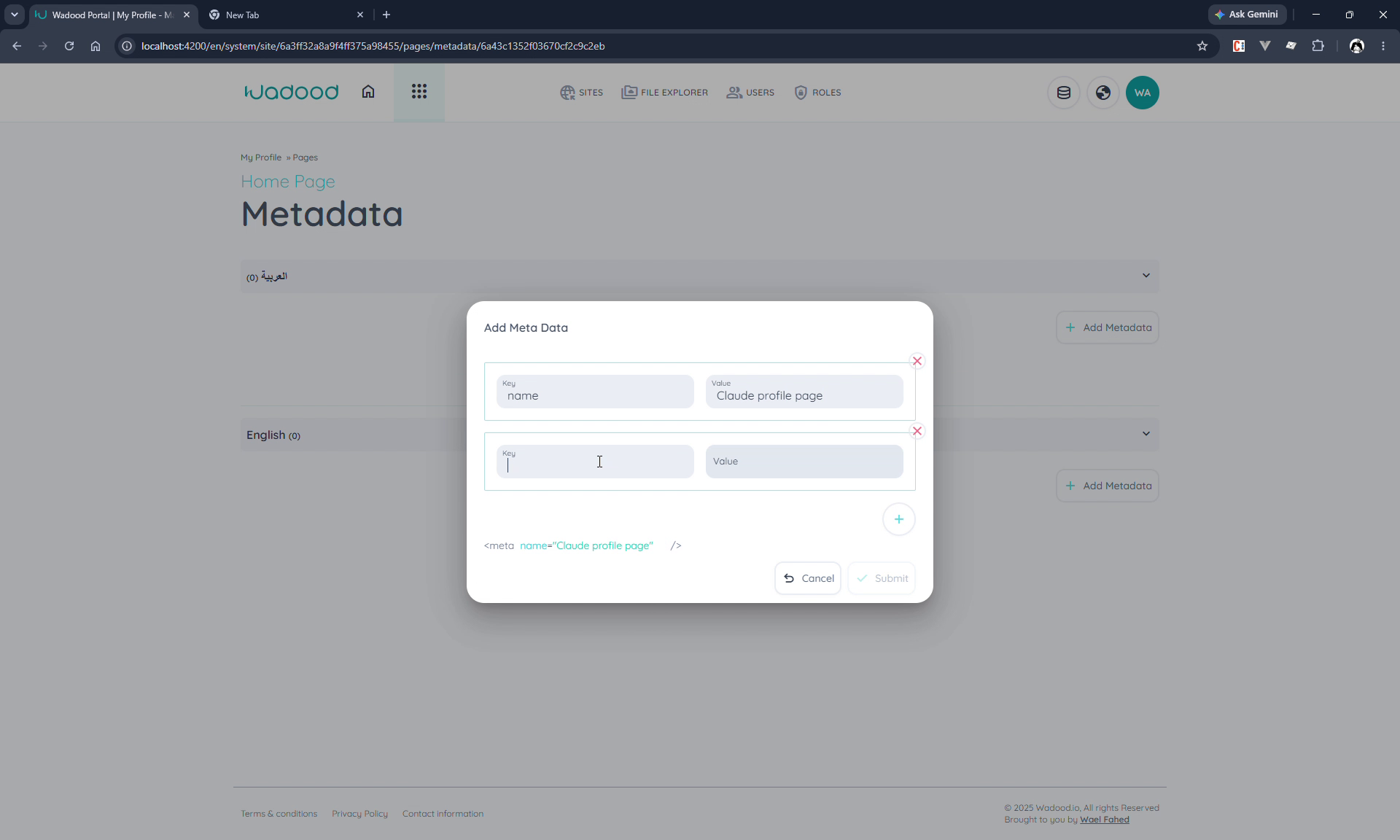
- Pick the language section, then Add Metadata.
- Each entry is a set of key/value attribute pairs — e.g.
name=description,content= "Welcome to my profile page" — and you can add extra attributes to a single meta tag with the + button. - A live preview shows the resulting tag (e.g.
<meta name="description" content="…" />).
6. The page builder (Page UI)
Click Page UI on a page to open the visual builder. The screen has three regions: the top bar, the workspace (element tree, centre), and the CSS / JavaScript panels (right).
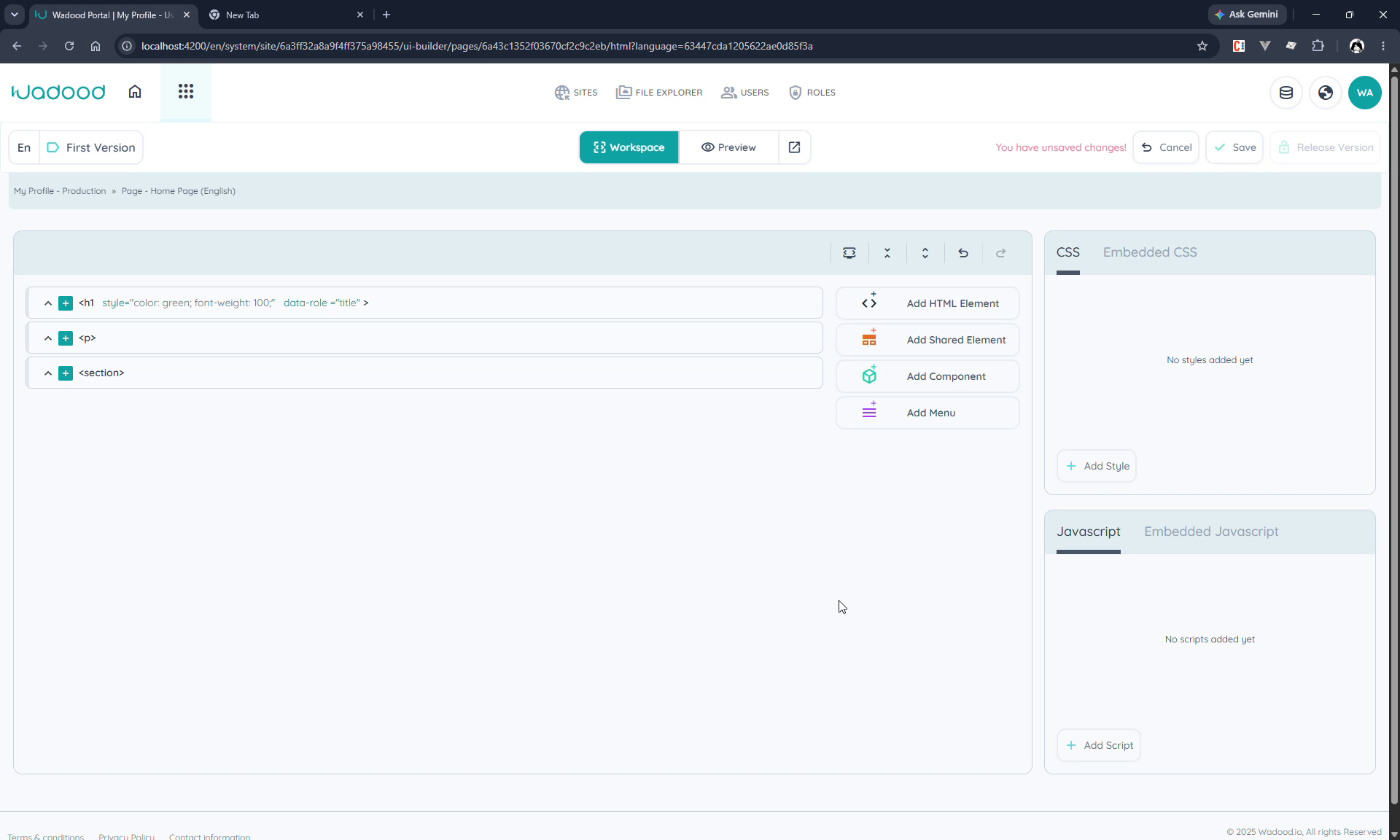
Top bar: the current language and version (top‑left), Workspace / Preview toggle, an open‑in‑browser link (the live URL, e.g. …/en/home), and Save / Release Version / Cancel. An unsaved changes indicator appears in red while you have pending edits.
6.1 Lock the version before editing
The page opens on its First Version, which is both the active and published version. To edit, you must lock the version first (this prevents two admins editing the same version at once). Once locked, the editing controls appear.
Versions — creating new/cloned versions, active vs. published, and locking — are covered fully in the versions guide. Here you just need to lock to start building.
6.2 Adding HTML elements
Use Add HTML Element and pick a tag (e.g. h1, p, section). The element editor has three tabs:
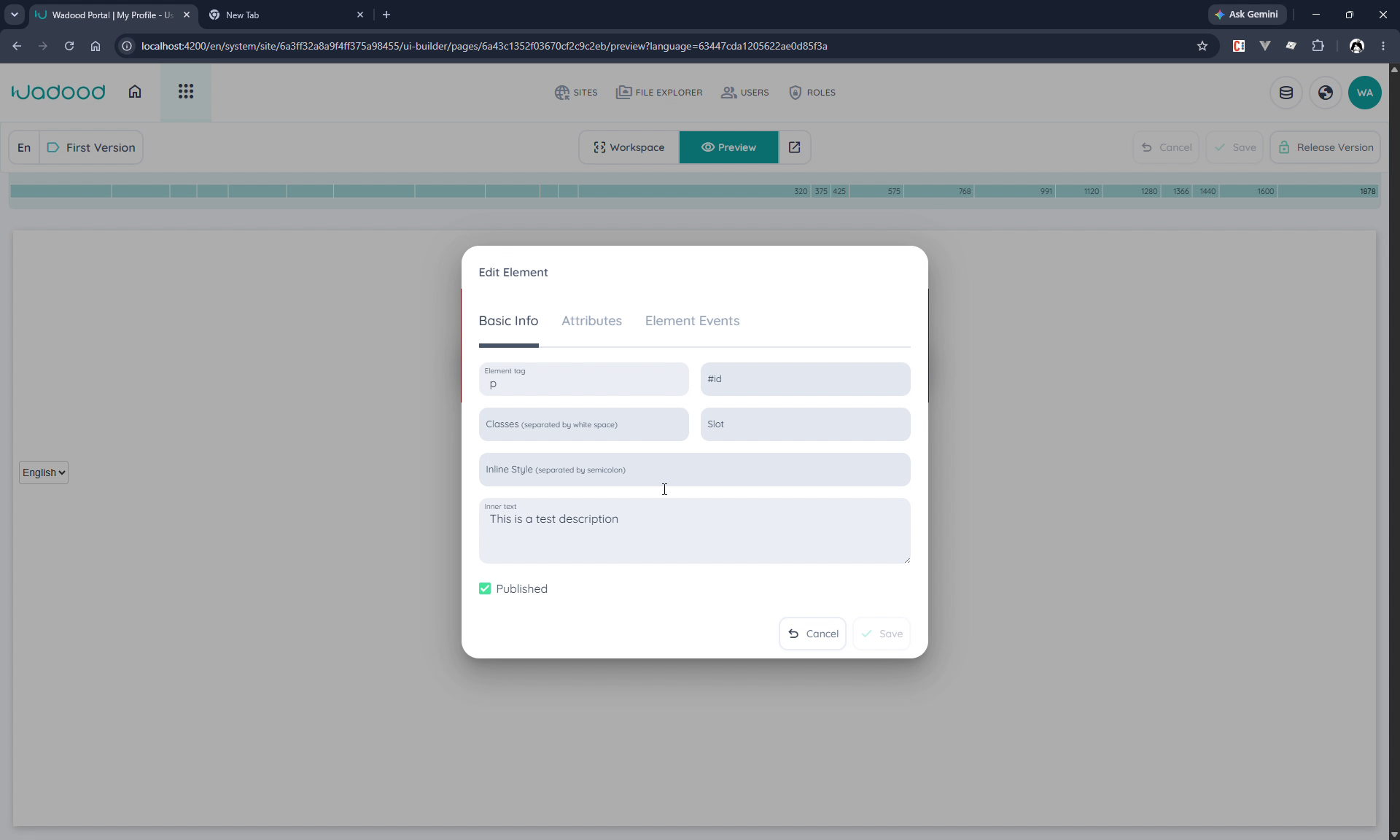
- Basic Info — the tag, #id, CSS classes, slot name, inline style, and inner text, plus a Published toggle (unpublishing hides the element — and all its children — from the rendered page).
- Attributes — arbitrary key/value HTML attributes (e.g.
data-role=title). - Element Events — pick a DOM event (e.g.
click) from the dropdown and give it a handler (e.g.alert('Hi')).
Each element in the tree has actions: select (orange outline), settings, publish/unpublish, duplicate, move, and convert to a shared HTML group (deferred to the Shared Elements guide). Undo/redo are in the workspace toolbar.
6.3 Moving & nesting elements
Click an element's move button to reveal placement arrows — the valid spots it can go (e.g. inside a section, or after the h1). Click a target arrow to move it there.
6.4 Adding components & shared elements
Beyond raw HTML, the toolbar offers:
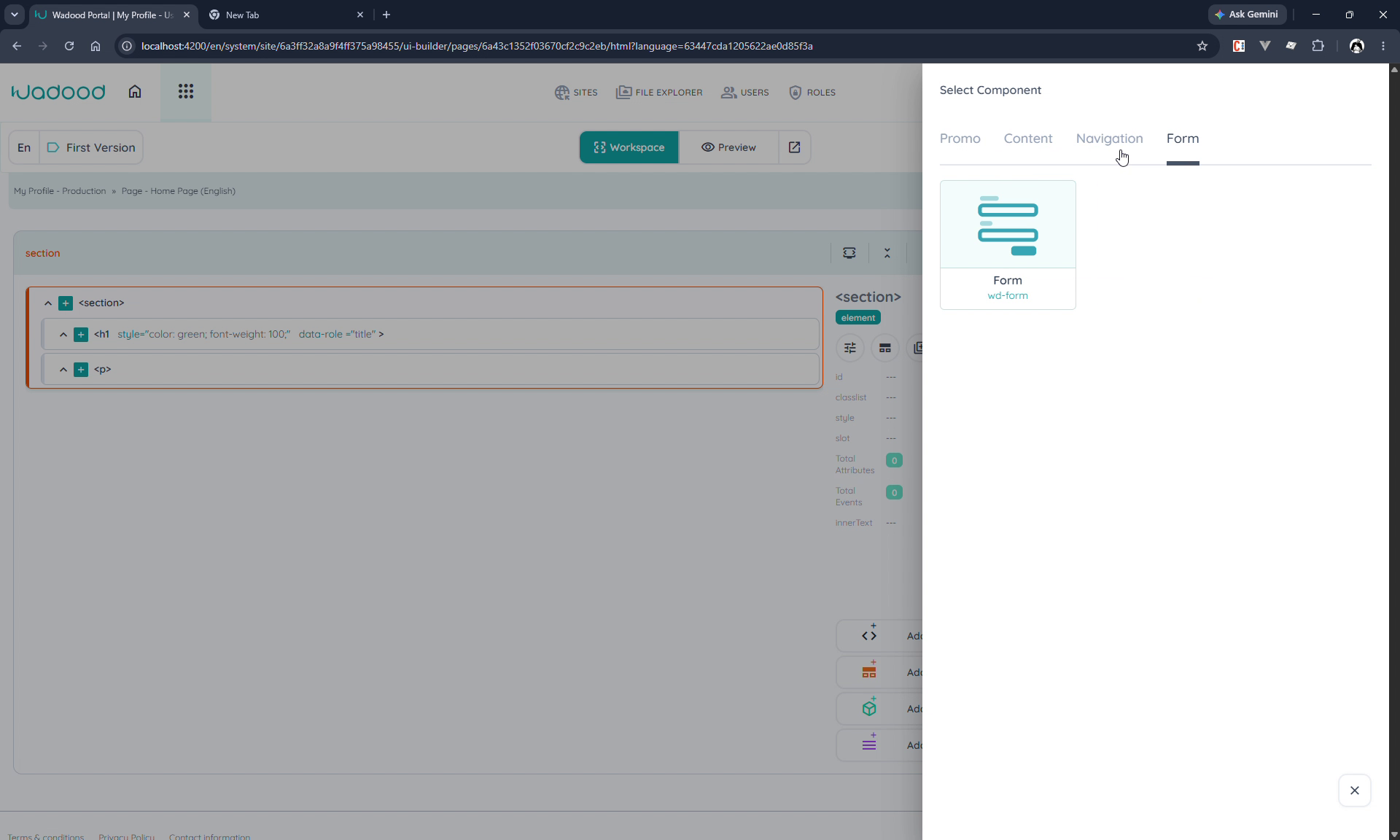
- Add Component — pre‑built widgets grouped by category (Promo, Content, Navigation, Form…), e.g. a language switcher. Components render in a distinct colour in the tree.
- Add Shared Element and Add Menu — insert a reusable shared element or a menu. (Shared elements get their own guide.)
6.5 Styling (CSS) and scripts (JavaScript)
The right panels attach styles and scripts to the page, per language:
- CSS — add named style blocks (e.g. "home page styling"); multiple blocks can be reordered by drag‑and‑drop.
- Embedded CSS — paste external/CDN stylesheets (e.g. Bootstrap).
- JavaScript / Embedded JavaScript — inline scripts and external/CDN scripts, the same way.
A page's styles/scripts are scoped to the language you're currently editing (the usage is preselected to it) — there's no Global or cross‑language option here. If you need shared or per‑language‑scoped styling (e.g. RTL for Arabic), that lives in Layouts, which add a Global usage.
6.6 Preview & inspect
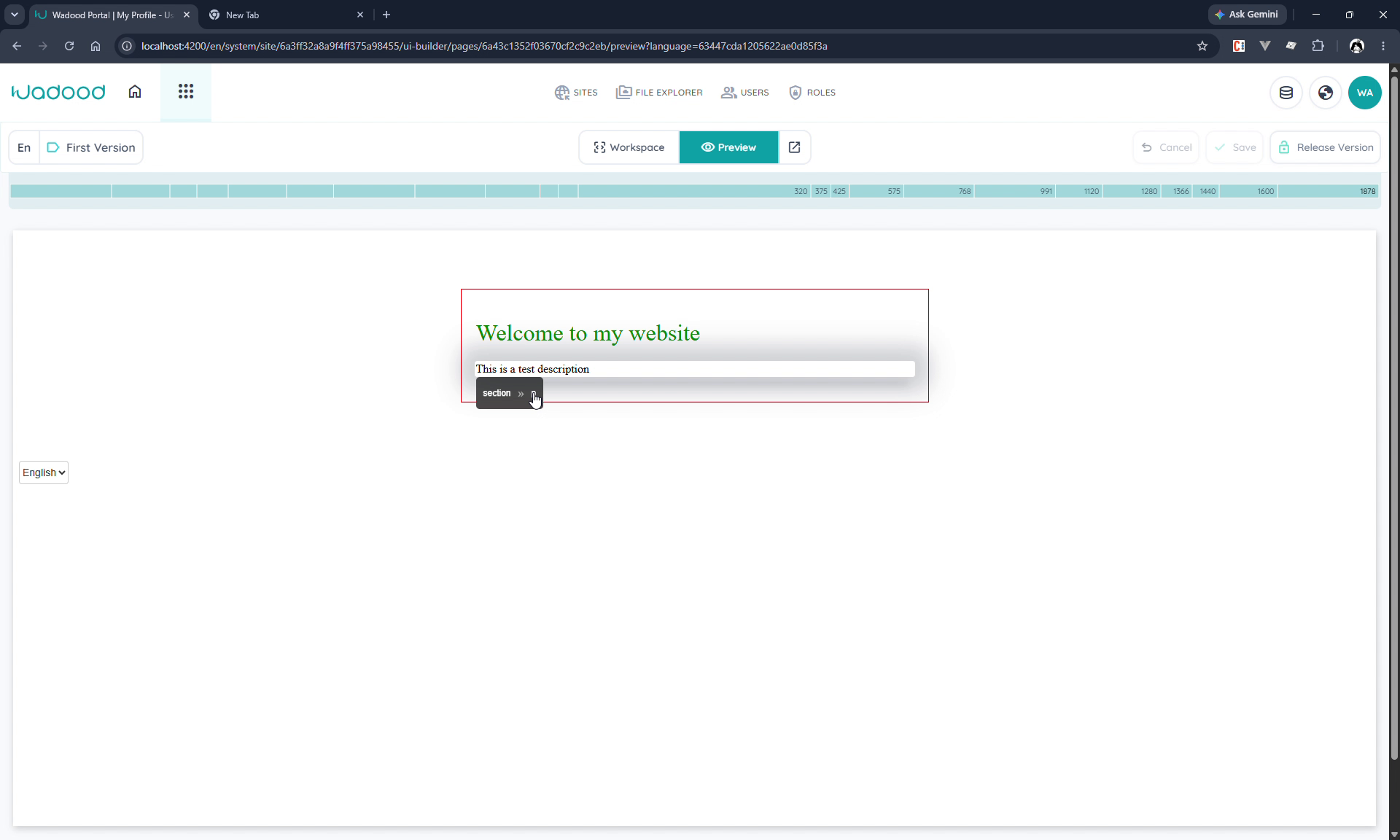
Switch to Preview to see the rendered page with responsive breakpoints along the top. Click any element to highlight it and show a breadcrumb of its path; the breadcrumb's snackbar lets you locate the element back in the workspace or change its settings directly.
6.7 Developer mode & saving
Developer mode shows the page as a single block of HTML (handy to review everything you've added) with submit/discard. Use Save to persist your changes (the red unsaved changes flag clears), and the open‑in‑browser link to view the real page at its DNS + route.
6.8 What you can add — allowed & blocked tags
Whether you type a tag in Add HTML Element or paste markup in Developer mode, the builder keeps content safe and consistent by accepting only certain tags. This applies identically in the page, layout, and shared‑element builders.
✅ Allowed
- Standard HTML & SVG elements — headings,
p,div/section, lists, tables, forms,img/video/audio,svg,iframe, and so on. wd-components and shared elements — added via their own toolbar buttons (see §6.4).- Custom elements — any tag whose name contains a hyphen (e.g.
my-widget,acme-card). This is the standard web‑components rule. An undefined custom element simply renders as an inert wrapper until you define its behaviour.
🚫 Blocked (removed on submit)
<script>and<style>— put scripts and styles in the dedicated JavaScript / CSS panels (§6.5) instead. Pasted inline scripts/styles wouldn't run anyway (the live site's security policy only trusts styles/scripts from those panels), and keeping them in one place is easier to maintain.- Unsafe / document‑level tags —
object,embed,base,html,head,title,meta,link. - Unknown tags (typos, or any non‑hyphen tag that isn't standard HTML).
Two things to know. (1) When a tag is removed, everything inside it is removed too — so don't wrap good content in a blocked tag. (2) Removal is not silent: after you submit HTML mode, a notice lists exactly which tags were dropped. In Add HTML Element, an invalid tag is rejected with an inline message before you can save.
A shared element can't be nested inside another shared element — it's blocked in the shared‑element builder only.
7. Tips & common pitfalls
- Lock the version before you build — editing controls only appear once the version is locked, and locking stops another admin clobbering your work.
- Languages come from the site. If a language is missing on the page form, enable it for the site first.
- Root slug per language drives the URL (
/<lang>/<slug>); the default page is what loads with no path. - Unpublishing an element hides its whole subtree from the rendered page — useful for staging content without deleting it.
- Save often — the builder shows a red unsaved changes indicator; nothing is persisted until you Save.
- Syncing a page doesn't publish it — after a sync, publish the version in the target environment.
8. More on Pages
This guide covers static pages and the builder. Other parts of the Pages module have their own guides:
- Versions — creating plain/cloned versions, the active vs. published model, locking, and Release Version.
- Languages (in depth) — multi‑language authoring and switching inside the builder.
- Dynamic pages — URL parameters, binding a page to a data category, dynamic title tags, and dynamic metadata.
- Shared Elements and Layouts — the "Add Shared Element", "convert to shared group", and "Use Layout" features referenced above.