Appearance
Data Store (Schemas, Categories & Items)
Module: Data Store Where to find it: Inside a site → site menu (the apps grid icon) → Data Schema / Data Categories / Data Items, or via the site dashboard shortcuts. Scope: Like all site modules, the Data Store is per site and per environment — pick the environment (Development, Production, …) at the top of each list before working. Who should read this: Administrators and content editors who set up structured, reusable content (products, posts, listings…) for a site.
1. Overview
The Data Store is where a site keeps its structured, repeatable content — the kind of data that powers dynamic pages (a product catalogue, a blog, a directory, etc.). It has three parts that work together:
| Part | What it is |
|---|---|
| Data Schema | The shape of your data — the fields a record has (e.g. a Product has name, brand, overview). |
| Data Category | A bucket of records that uses one schema (e.g. the "Products" category uses the Product schema). Categories can be nested. |
| Data Item | A single record inside a category (e.g. "Samsung S26 Ultra"), filled in according to the schema. |
The flow is always Schema → Category → Items: define a schema, create a category that points at it, then add items to that category.
A schema can get its data in one of two ways:
- Manual entry — you design the fields yourself and editors fill items in by hand (per language).
- External API — you connect an existing API; the schema is generated from the response and items are fetched live from that API (not entered by hand).
2. Prerequisites
The Data Store uses the data store privilege group. Relevant privileges:
| Area | View | Add | Edit | Delete |
|---|---|---|---|---|
| Data Store (overall) | CVDS | — | — | — |
| Data Schema | CVDSC | CADSC | CEDSC | CDDSC |
| Data Categories | CVDC | CADC | CEDC | CDDC |
| Data Items | CVDI | CADI | CEDI | CDDI |
The Data Store also requires the site's dynamic pages capability to be enabled.
3. Data Schemas
3.1 The schema list
Open Data Schema. At the top you'll see environment tabs — choose which environment you're configuring. Below are Available / Deleted tabs, a search box, and the Create schema button (needs CADSC). The table lists each schema with its source (Manual / External) and edit/delete actions.
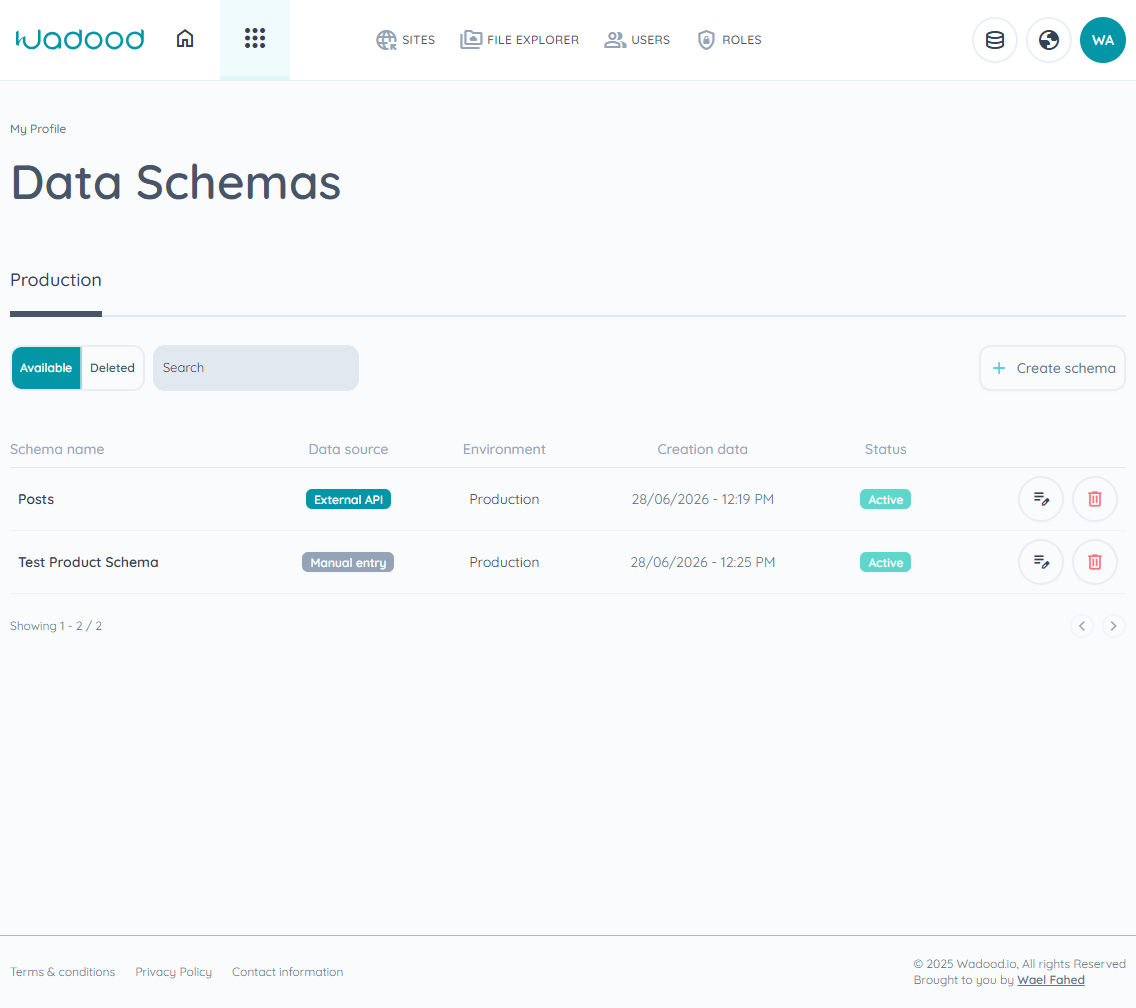
3.2 Creating a schema — choose a source
Click Create schema. The builder is a short wizard: 1. Data source → 2. Configure → (3. Review fields, for External). First, pick how the data is sourced:
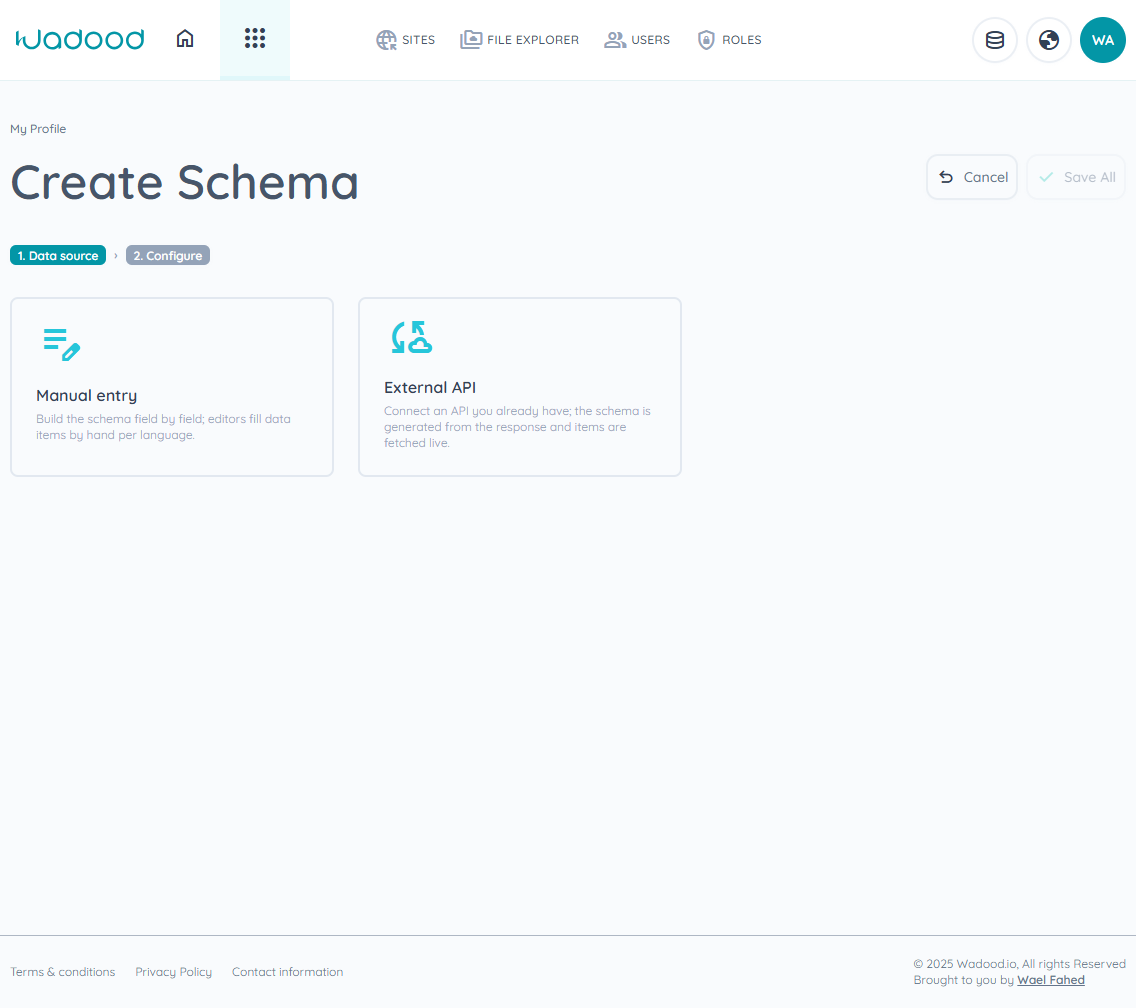
- Manual entry — "Build the schema field by field; editors fill data items by hand per language."
- External API — "Connect an API you already have; the schema is generated from the response and items are fetched live."
A Schema name field is shown on every step. When you're done, click Save All.
3.3 Manual schema builder
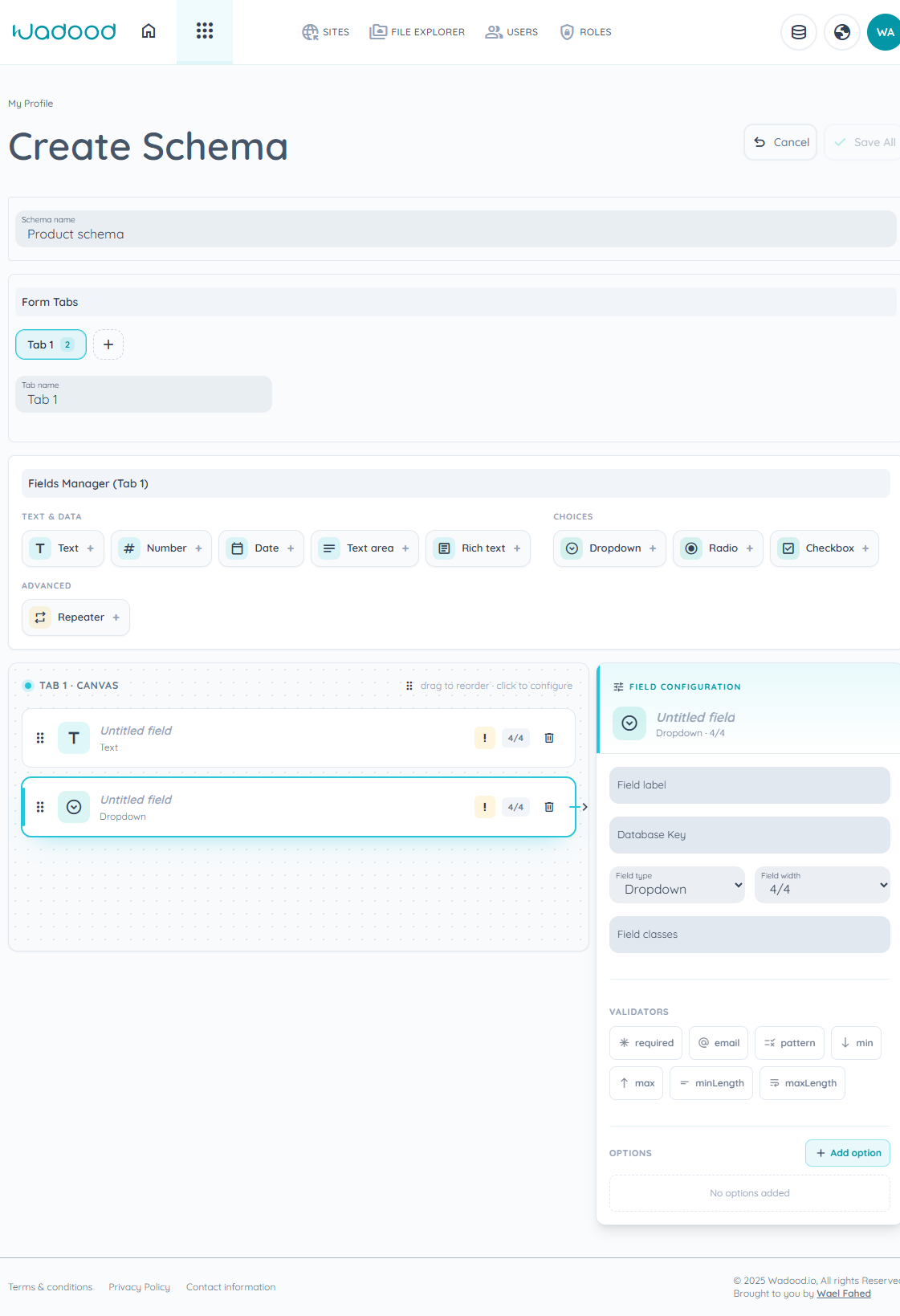
The manual builder is a drag‑and‑drop form designer:
- Form Tabs — a schema can be split into one or more tabs (e.g. General info, Specifications). Use + to add a tab and the × to remove one (at least one tab is required). Each tab has a Tab name and shows its field count.
- Fields Manager (palette) — click a field type to drop it onto the canvas. Types are grouped:
- Text & Data: Text, Number, Date, Text area, Rich text
- Choices: Dropdown, Radio, Checkbox
- Advanced: Repeater
- Canvas — your fields for the active tab. Drag to reorder, click a field to configure it, trash icon to delete. An amber
!marks a field that still needs attention; the badge (e.g.4/4) shows its width. - Field Configuration (right panel) — for the selected field:
- Field label — the human label shown to editors (filling it suggests a Database Key).
- Database Key — the key the value is stored under (e.g.
name). - Field type and Field width (
1/4–4/4of the row). - Field classes — optional CSS classes.
- Validators — toggle any of:
required,email,pattern,min,max,minLength,maxLength. Validators that need a value (e.g. minLength = 2, maxLength = 100) reveal an input. - Options — for Dropdown / Radio / Checkbox, add Option name (label) + Option value (stored value) pairs.
- Repeater item — for a Repeater field, define the repeated sub‑field's type and label.
Click Save All when the schema is complete.
3.4 External API schema
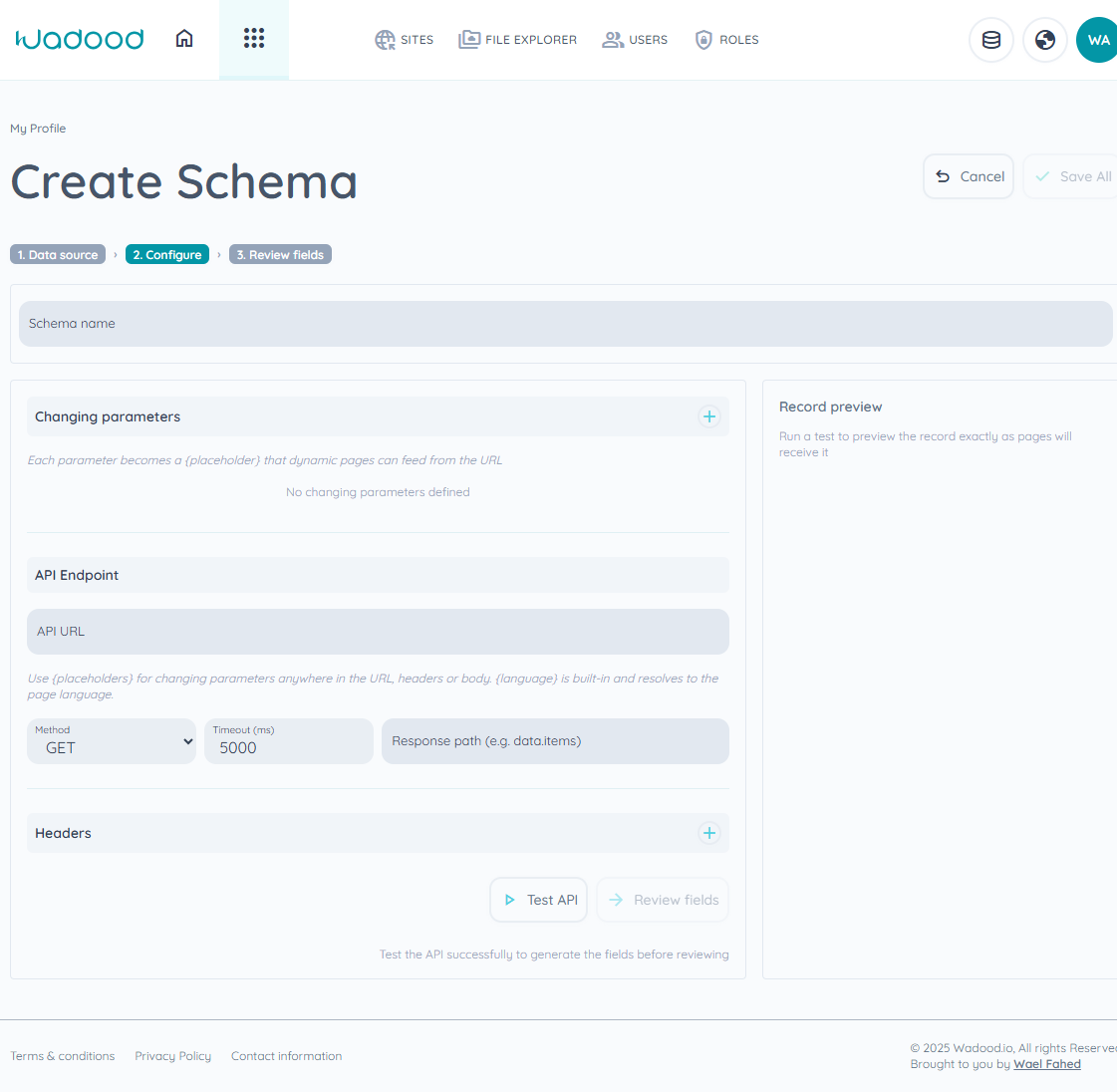
The External configuration screen builds a schema from a live API call:
- Changing parameters — define variables that turn into
{placeholder}tokens in the URL. Each has a Parameter name and a Preview value (used when testing). Example: apost_IDparameter with preview value1. - API Endpoint:
- API URL — the endpoint, with placeholders, e.g.
https://jsonplaceholder.typicode.com/posts/(post_ID). - Method — GET, POST, etc.
- Timeout (ms) — 1000–15000.
- Response path — where the records live in the response (e.g.
data.items); leave blank if the response is already the record. - Request body — a JSON template, shown only for non‑GET methods.
- API URL — the endpoint, with placeholders, e.g.
- Headers — add request headers (Header + Value). Tick Private for secrets (API keys/tokens): private values are encrypted at rest and hidden after saving.
- Test API — runs the call and shows a Record preview (flattened key/values) on the right. Change a parameter's preview value to fetch a different sample.
- Review fields — after a successful test, this step lists the fields discovered in the response so you can select/unselect which to keep. Then Submit.
External schemas are read‑only sources — you don't enter items by hand for them; the platform fetches data live from the API.
3.5 Editing & deleting schemas
Use the edit/delete actions in the schema table. Deleted schemas move to the Deleted tab (restorable), consistent with the rest of the portal.
4. Data Categories
A Data Category is a bucket of items bound to one schema.
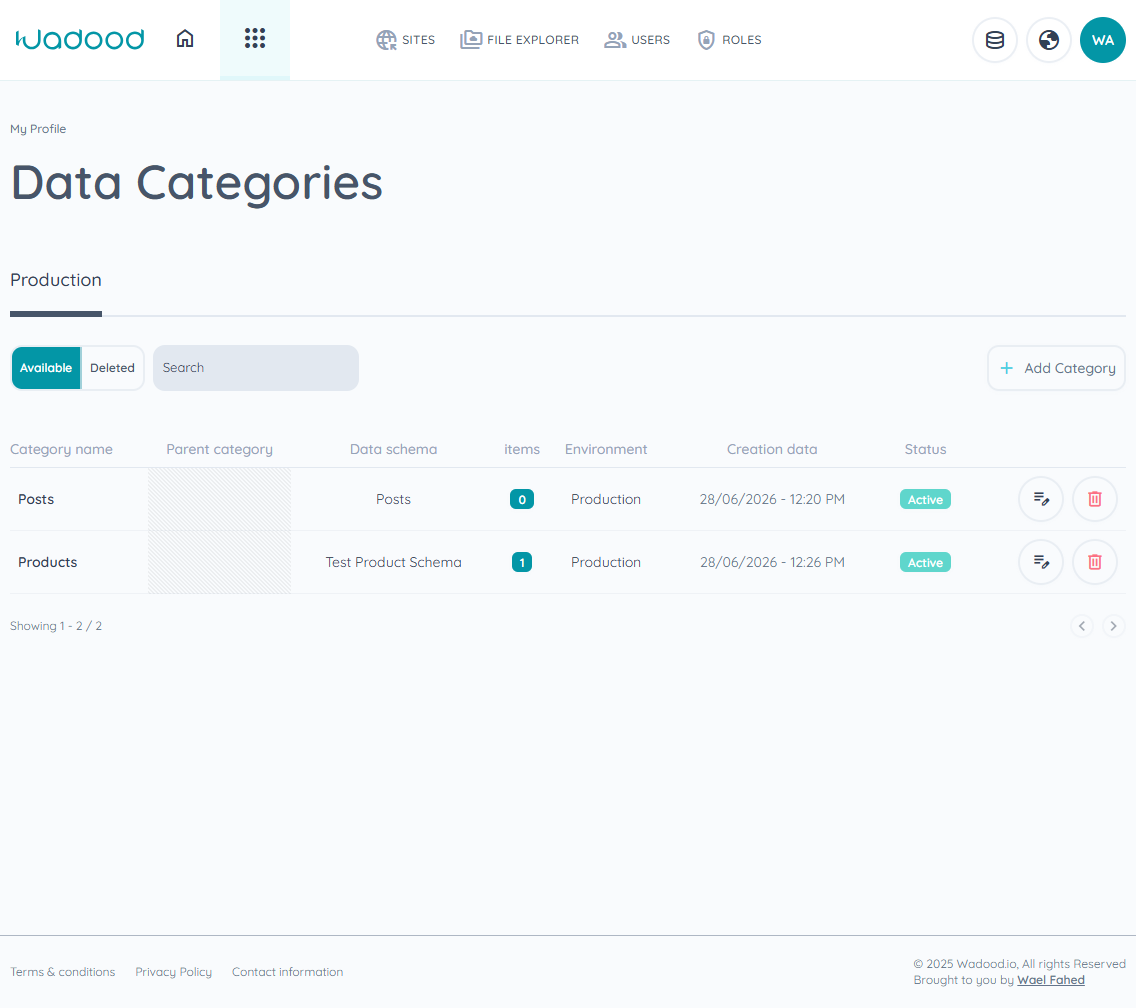
Click Add Category (modal):
| Field | Notes |
|---|---|
| Category name | Required (e.g. "Products"). |
| Parent category | Optional — pick a parent to nest categories (e.g. Products under Catalogue). |
| Data schema | Required — the schema this category's items follow (Manual or External). |
The category list shows each category's parent, its linked schema, and the number of items it holds.
5. Data Items
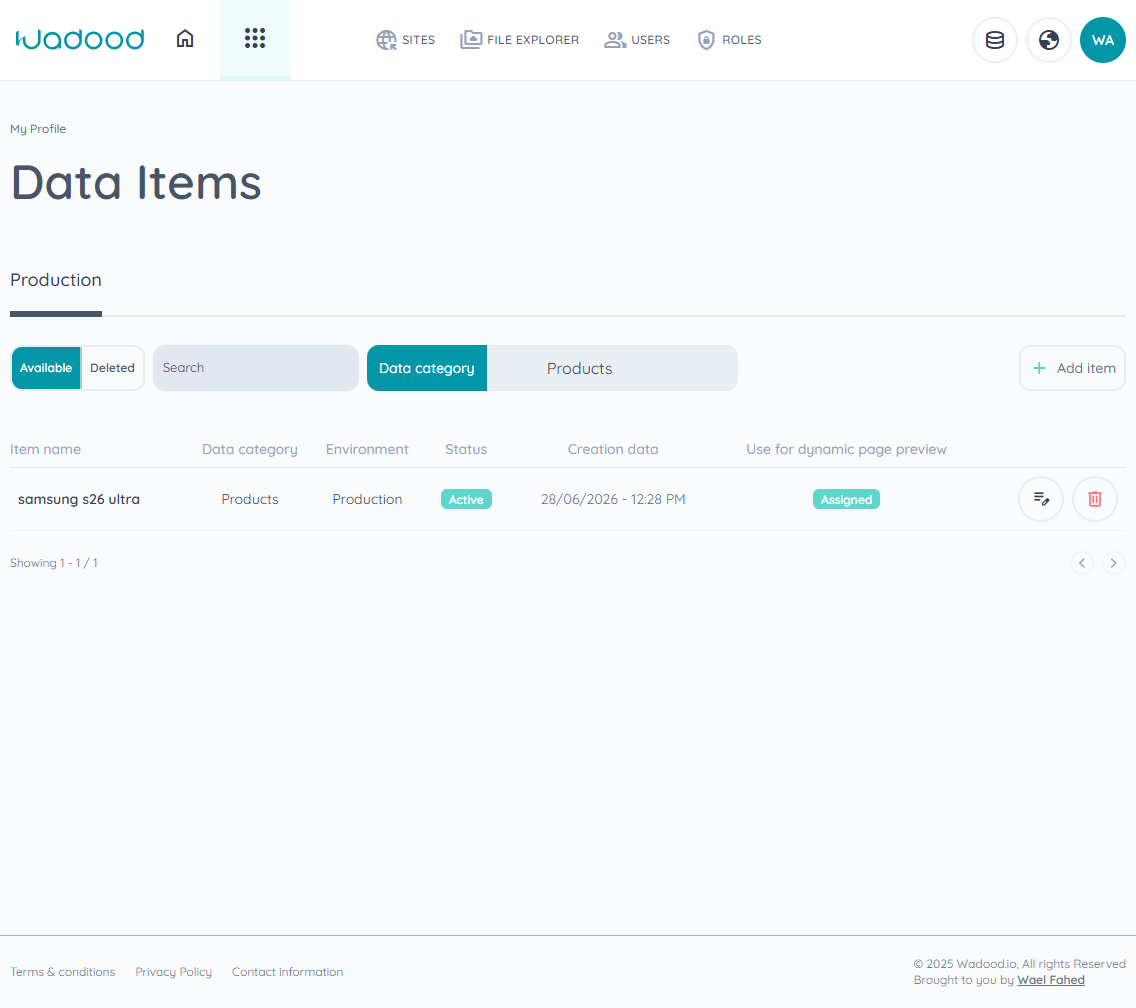
Open Data Items. You must select a Data Category first — the Add item button stays disabled and the list shows "No categories selected" until you do. Use the Data category picker to choose one; the list then shows that category's items (name, category, environment, status, creation date, and a "Use for dynamic page preview" assignment).
5.1 Items for a manual schema
Click Add item (or edit an existing one). The editor renders the schema's fields, organised by the schema's tabs, and is multilingual:
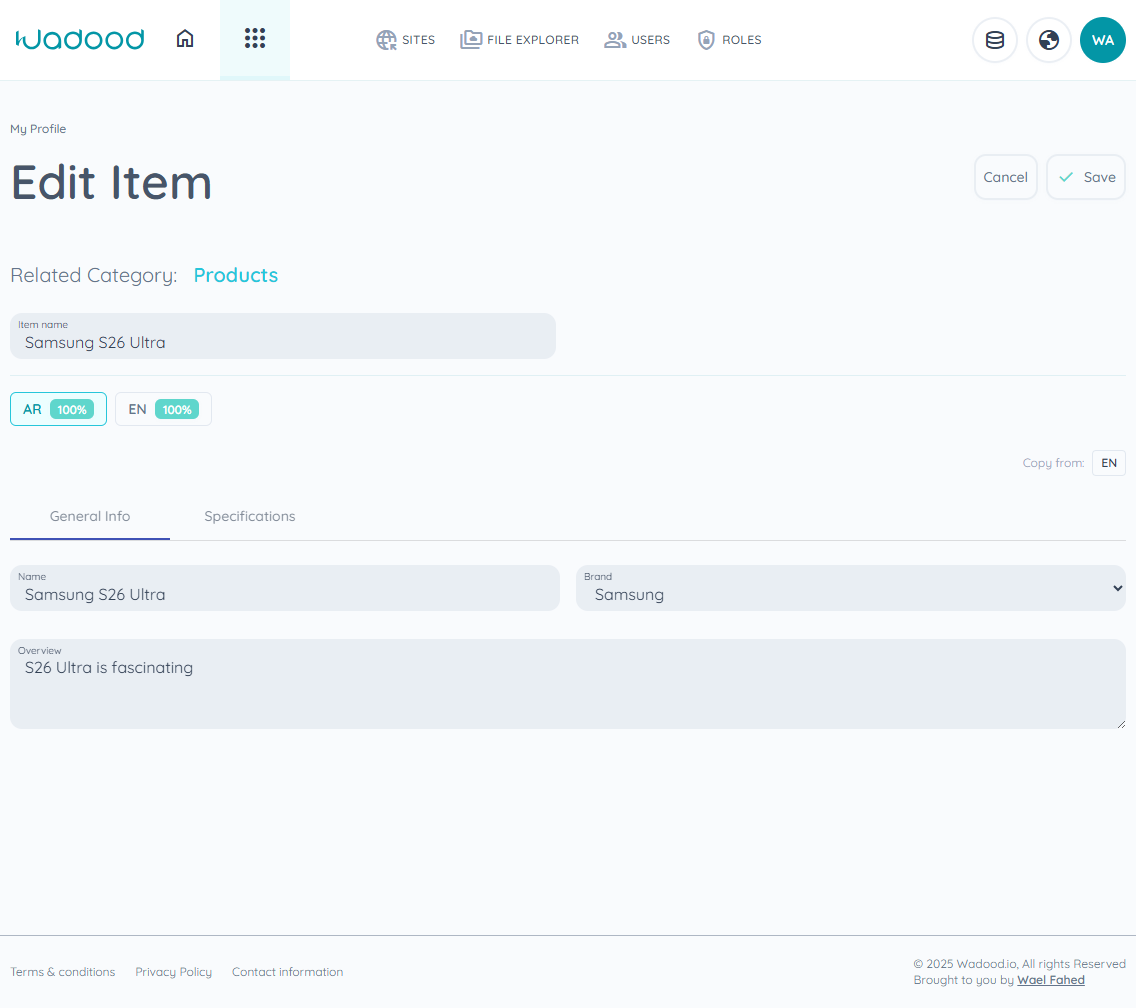
- Item name — a required base label for the record.
- Language tabs — one tab per site language, each showing a completion % badge (green at 100%, red if something's invalid). Fill each field per language.
- Copy from — when the site has more than one language, copy an already‑filled language's values into the current one as a starting point (e.g. Copy from EN), then tweak.
- Fields render with the validators you defined (required, min/max length, etc.).
Click Save when done.
5.2 Items for an external‑API schema
If the selected category's schema is External API, you can't add items by hand. The editor shows:
"This category is connected to an external API schema — items are fetched live from the API and cannot be added manually."
The data is pulled live from the API whenever it's needed.
5.3 Edit / delete / preview
Each item row has edit and delete actions. The "Use for dynamic page preview" column lets you mark an item as the sample record used when previewing dynamic pages built on this category.
6. Reference
Field types (manual schema)
| Group | Types |
|---|---|
| Text & Data | Text, Number, Date, Text area, Rich text |
| Choices | Dropdown, Radio, Checkbox |
| Advanced | Repeater |
Validators
required · email · pattern · min · max · minLength · maxLength (min/max/minLength/maxLength/pattern take a value.)
Field widths
1/4, 2/4, 3/4, 4/4 of the row.
7. Tips & common pitfalls
- Work in the right environment. Schemas, categories, and items are all environment‑scoped — check the environment tab before creating anything.
- Order matters: schema first, then a category that points at it, then items. You can't add items until a category (with a schema) exists and is selected.
- Database Key is permanent‑ish. It's the key your dynamic pages read; pick clear, stable keys and avoid changing them after items exist.
- Use tabs to keep big schemas tidy (e.g. General info vs Specifications).
- For choice fields, set both the option name and value — the name is shown to editors, the value is what's stored/used.
- Mark secret headers as Private on external schemas so API keys are encrypted, not stored in plain text.
- Test before you can review an external schema — the Review fields step only unlocks after a successful Test API.
- External categories are read‑only — if you need hand‑entered content, use a Manual schema instead.
- Watch the language completion % on items — a record isn't fully translated until every language tab reads 100%.