Appearance
Layouts
Module: Layouts (called Templates internally) Where to find it: Inside a site → site menu (the apps grid icon) → Layouts. Scope: Per site and per environment — pick the environment tab before working. Who should read this: Administrators who want a shared shell (header, footer, navigation) around many pages without rebuilding it each time. Builds on: Pages — a Layout is built with the same editor and the same versions & languages model.
1. Overview
A Layout is a reusable container that wraps pages. Instead of adding the same header, navigation, and footer to every page, you build them once in a layout, mark where the page's content should go, and then attach that layout to as many pages as you like. When a page connected to a layout is displayed, it ships the layout with it — the page's own content renders inside the layout's shell.
A layout is built in the Layout UI, which is the same builder as pages (HTML elements, components, shared elements, menus, CSS, JavaScript, embedded CSS/JS, preview, versions, lock/release) — including the same rules for which tags you can add. There are only two differences:
- No external URL link — layouts aren't pages, they're containers, so there's nothing to open in the browser on their own.
- A "pages container" control — you mark one element as the slot where attached pages render (see §4).
Layouts are environment‑scoped and promote between environments through the Sync Manager, like pages.
2. Prerequisites
Layouts use the layouts privilege group (note the codes are …T… for Template):
| Action | Privilege |
|---|---|
| View layouts | Can View Layouts (CVT) |
| Add a layout | Can Add Layouts (CAT) |
| Edit a layout | Can Edit Layouts (CET) |
| Delete a layout | Can Delete Layouts (CDT) |
| View / Edit the layout builder | Can View / Edit Layouts UI (CVTUI / CETUI) |
| Add / Edit / Delete versions | CATV / CETV / CDTV |
3. Creating a layout
Open Layouts, pick the environment, and click Create layout. A layout needs only a name (e.g. "Common").
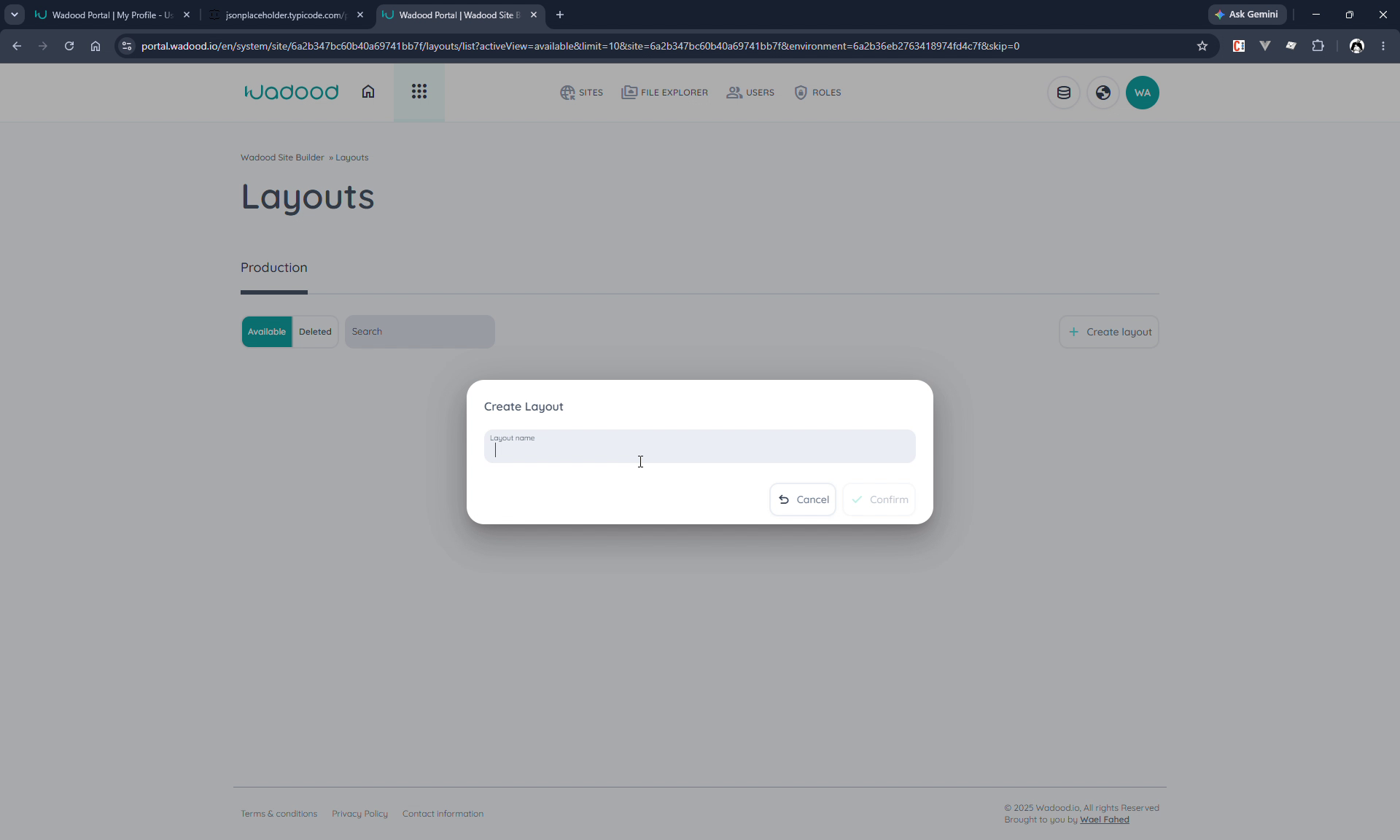
Confirm and the builder opens straight into the Layout UI, with a First Version already created and published — exactly like a new page.
Building the shell
Lock the version (read‑only until locked — see Pages Part 2), then build the structure like any page. A typical shell:
- a
headerelement (e.g. with a nav menu), - a
mainelement for the page content, - a
footerelement,
…each styled via the CSS panel (the example uses an .inner-row wrapper with max-width + margin: auto, a black header, and a yellow footer). Components, menus, shared elements, and scripts all work as in the page builder.
Tip: if a container looks empty in preview, it likely has zero height — give your content area a
min-heightso the layout regions are visible while authoring.
4. The "pages container" (the slot)
This is the one concept unique to layouts. Select the element that should hold the page's content — its element settings panel has a Pages container toggle.
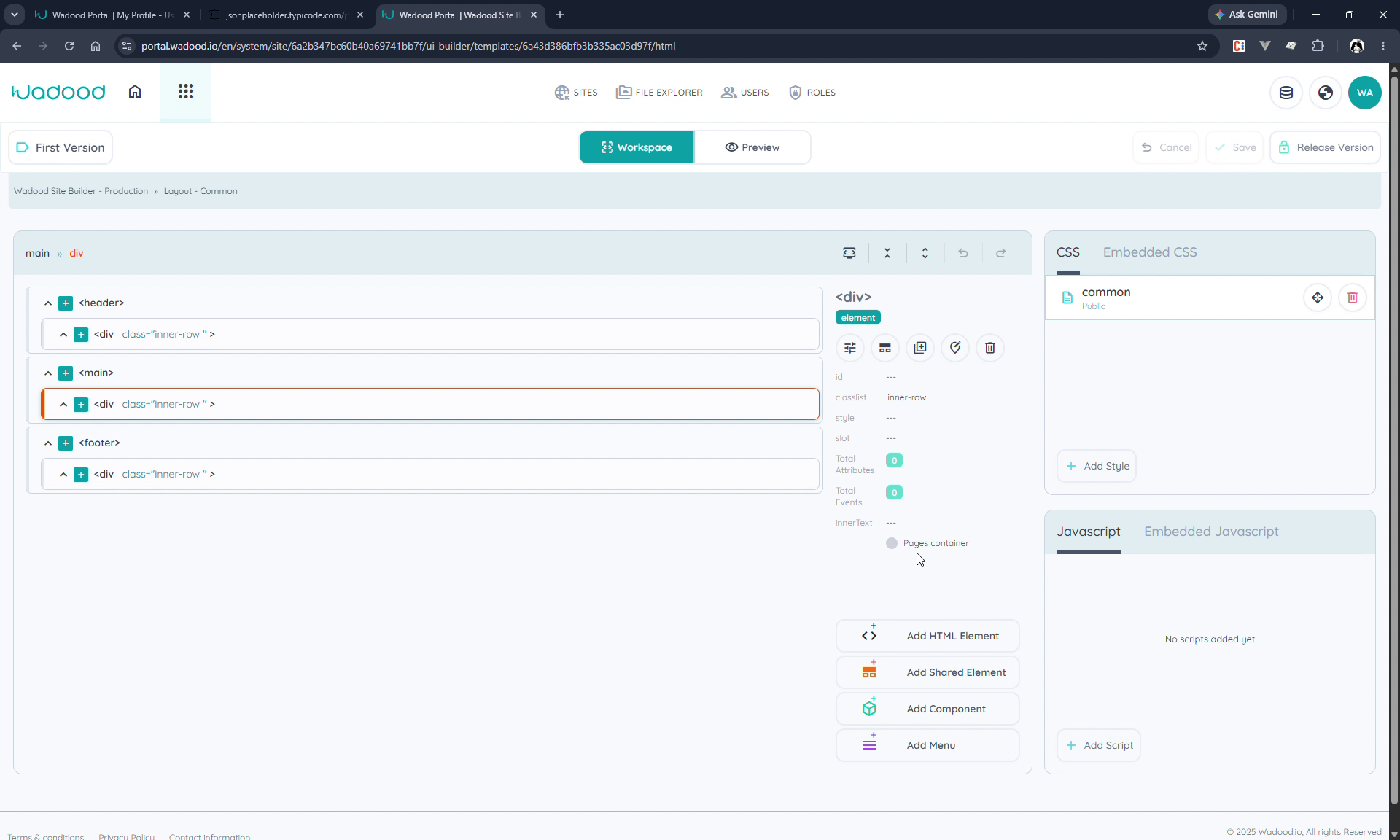
Turn it on to designate that element as the slot where an attached page renders. In Preview, the slot is marked with an inset shadow / outline so you can see where page content will appear:
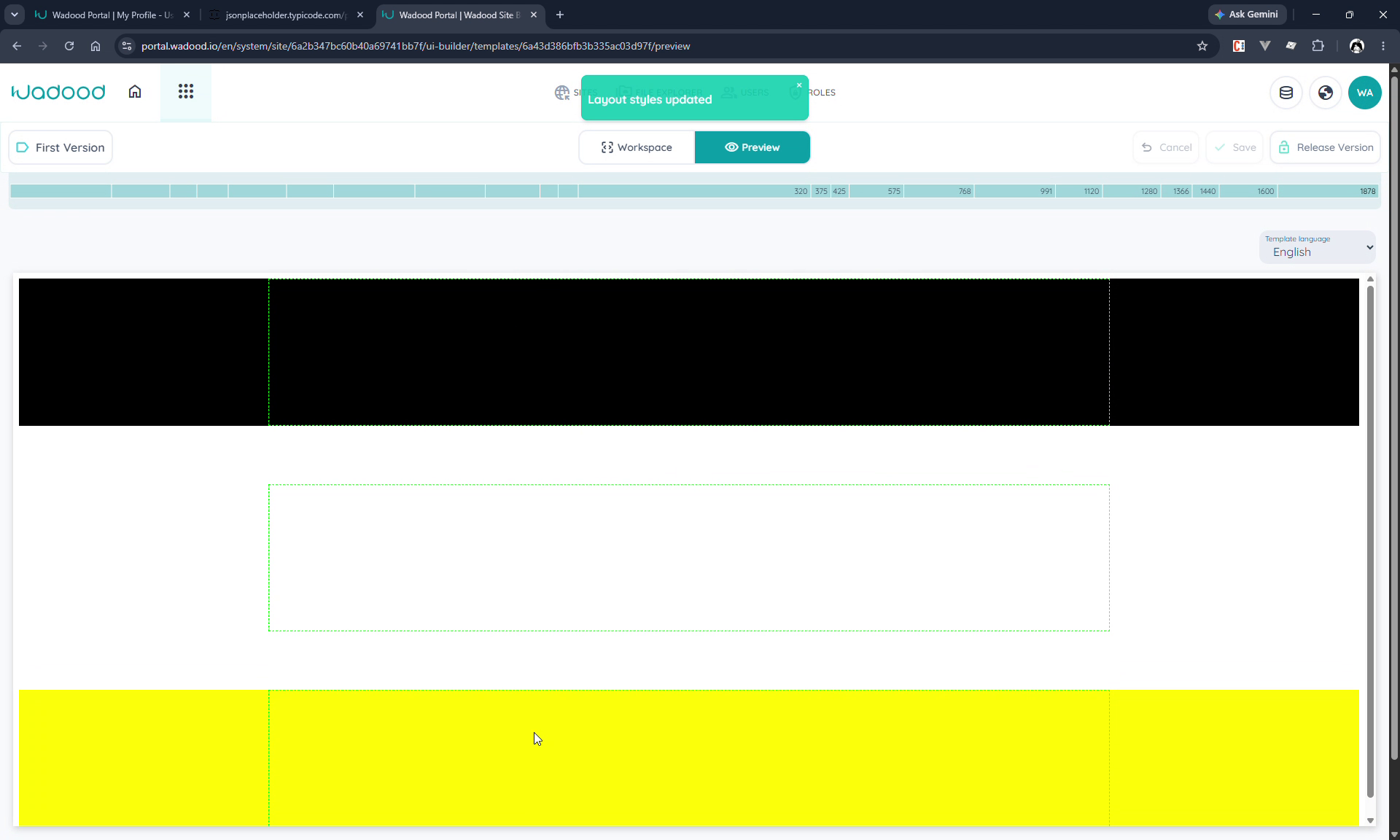
Only one element is the pages container — everything else (header, footer, nav) is the fixed chrome that surrounds it.
When the layout looks right, make sure the version is published (the first version is published by default) and release the lock so others can edit.
5. Style & script usage — Global vs. per‑language (layout‑only)
This is a capability layouts have that pages don't. When you add a CSS, Embedded CSS, JavaScript, or Embedded JavaScript block in a layout, the form has a Style Usage (scope) selector:
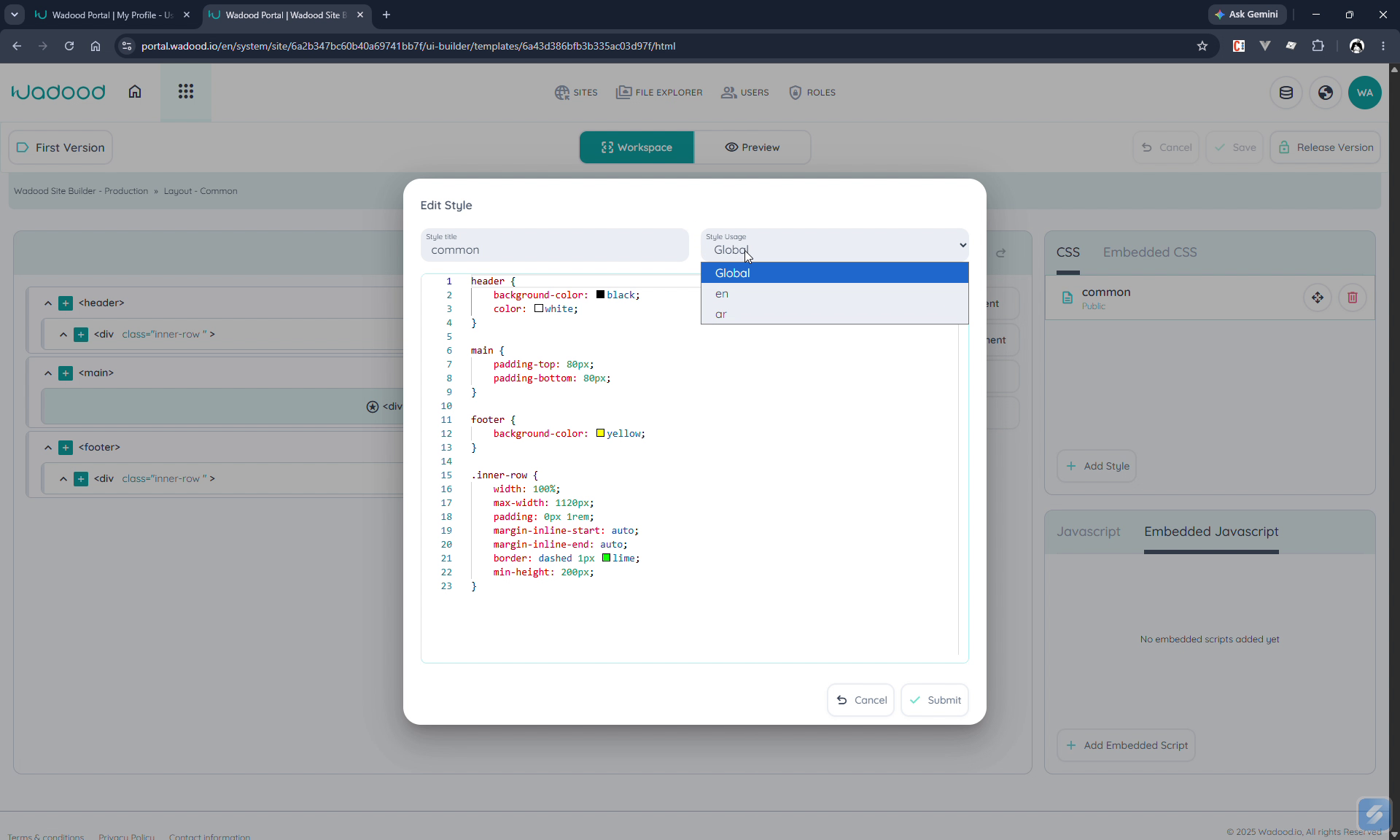
| Usage | What it does |
|---|---|
| Global | The style/script is applied to all pages under this layout, in every language. |
A specific language (e.g. en, ar) | The style/script is applied only to pages in that language under the layout. |
Why it matters — RTL and language tweaks. You keep your shared styling Global, then add a second block scoped to a single language for the differences. The classic example is right‑to‑left support: add an rtl style with Style Usage = Arabic containing e.g. * { direction: rtl; } (or swapping margin-left → margin-right). It renders only for Arabic pages under the layout; English pages are unaffected.
How to organise it (recommended). Write your CSS once as a Global block, for your default language. Then add one block per extra language that contains only what differs in that language — the fonts, letter‑spacing, line‑height, right‑to‑left details — and give it a higher order than the Global block, so it loads after it and wins. A fix or an enhancement then happens in one place. Avoid repeating a stylesheet in every page or in every language.
Contrast with pages: a page's style/script has no Global option — its usage is fixed to the language you're currently editing (and it's preselected). Only layouts offer Global and cross‑language scoping, which is what makes them the right place for shared, language‑aware chrome styling.
6. Attaching a layout to a page
Open a page → Edit, and in the Layout section tick Use Layout, then pick your layout.
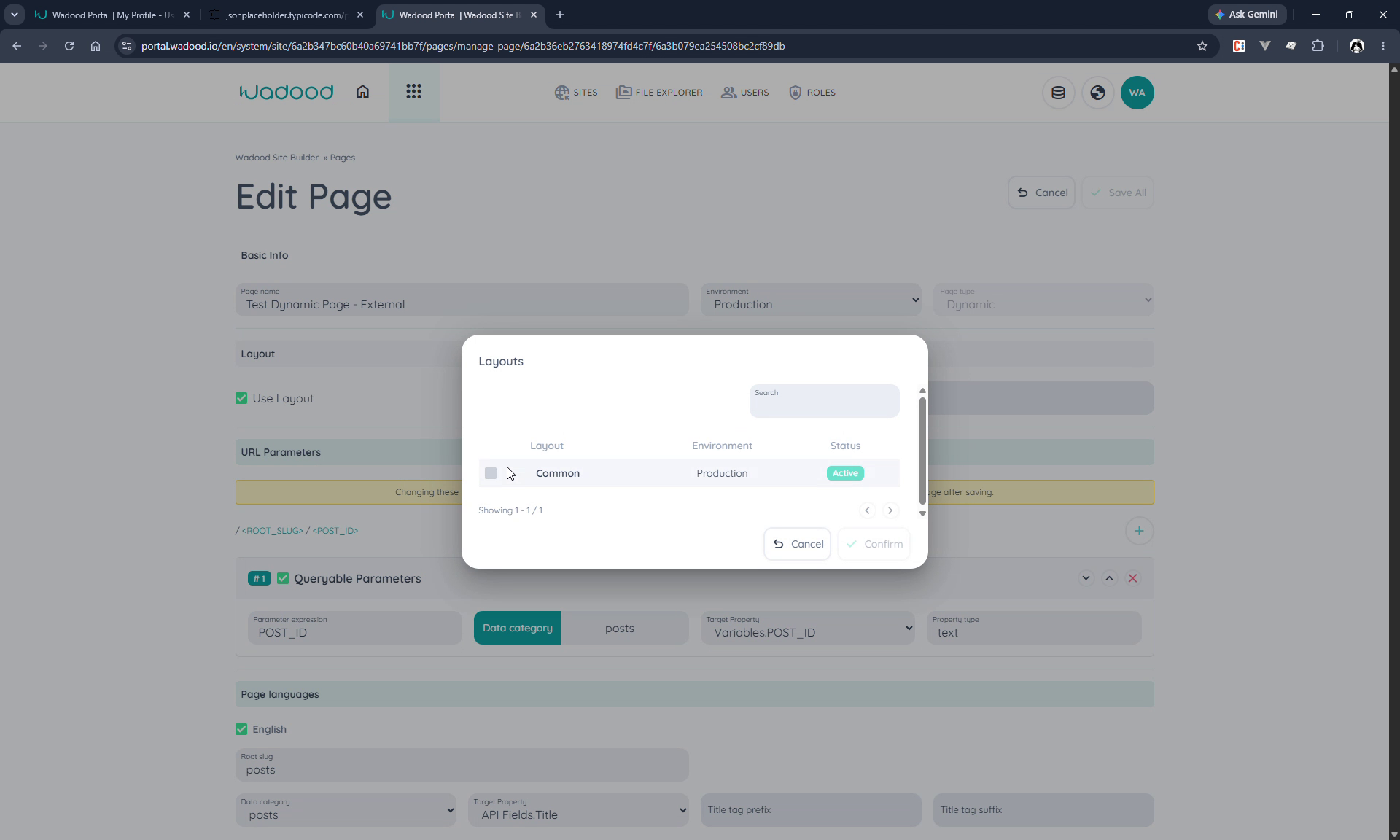
Save the page. It's now connected to the layout.
This is the same Use Layout option referenced in Pages Part 1 — now you have a layout to select.
Which layout version wraps the page? The published version of the layout is always the one used as the page's wrapper — never your active/draft version. So editing a layout doesn't change live pages until you publish that layout version; once you do, every page using the layout picks up the change.
7. The result
Open the page's Page UI → Preview. The page's own content now renders inside the layout's slot, wrapped by the layout's header and footer:
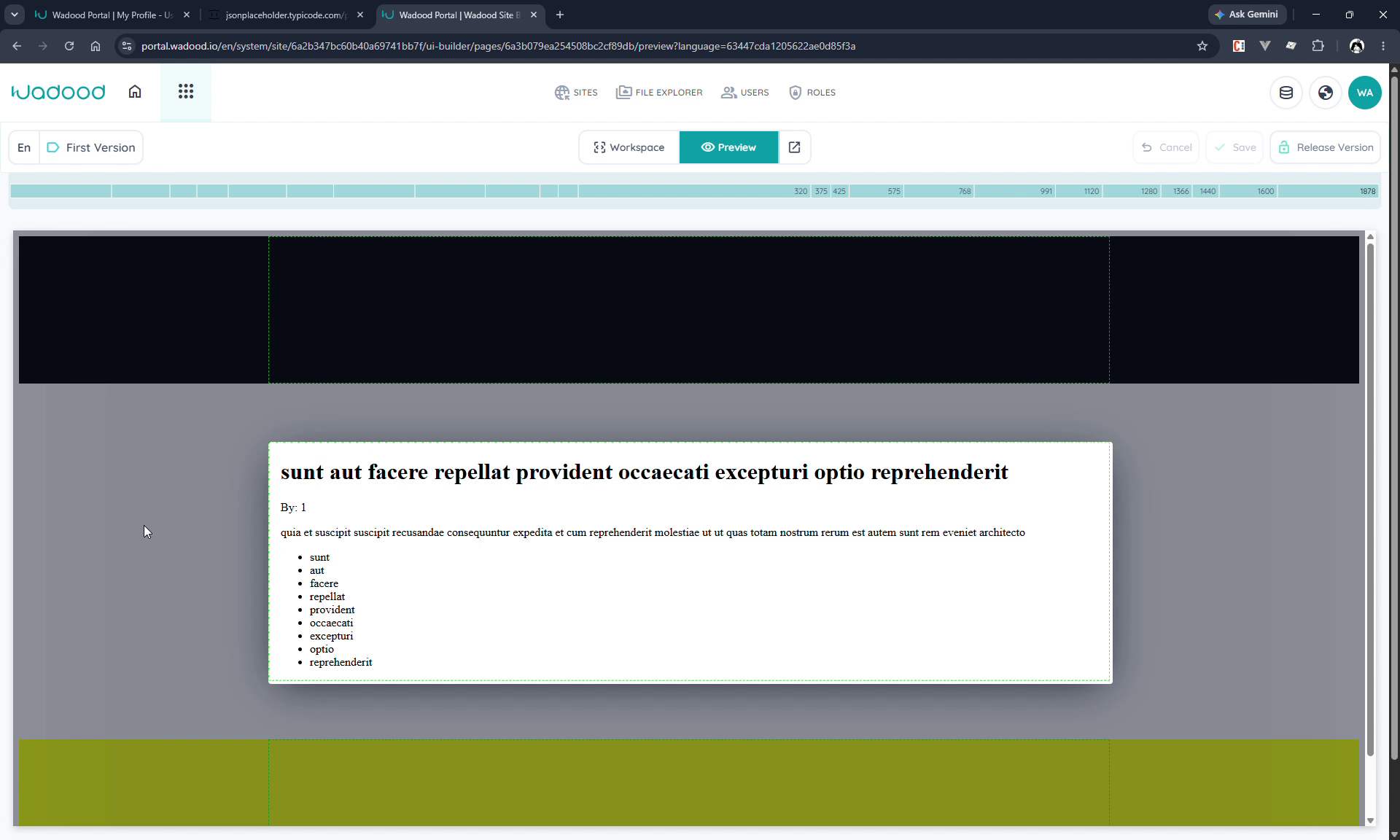
In the page builder you can select and edit the page's elements, but not the layout's elements — the layout chrome is read‑only from within the page. To change the header/footer, edit the layout itself (and every page using it updates).
8. Versions, lock & delete
- Versions and locking work exactly as for pages — multiple versions per layout, one published, your own active version, lock to edit / release when done. See Pages Part 2.
- Soft delete moves a layout to the Deleted tab (restorable). It's blocked if any version is locked.
- Hard delete removes the layout permanently — and every page that used it is automatically detached (those pages revert to no layout). So deleting a shared layout affects all its pages; check what's attached first.
9. Tips & common pitfalls
- One layout, many pages — build common header/footer/nav once; edit the layout and all attached pages update.
- Mark exactly one "pages container" — that's the slot the page fills; without it, an attached page has nowhere to render its content.
- Give regions a
min-heightwhile authoring so empty containers are visible. - Layouts have no URL of their own — preview them in the builder; they only appear on the site through the pages that use them.
- You can't edit layout elements from a page — change the layout itself.
- Use Style Usage for RTL/per‑language styling — keep shared rules Global and add a language‑scoped block (e.g.
direction: rtlfor Arabic). This scoping is a layout‑only feature; page styles are always bound to the current language. - Hard‑deleting a layout detaches its pages — and remember to sync the layout together with the pages that depend on it when promoting environments.