Appearance
File Explorer
Module: File Explorer (File Manager) Where to find it: Available everywhere in the portal — it opens as a dialog from the File Explorer shortcut in the top navigation (it isn't a separate page you navigate to). Scope: Client-wide (shared across all your sites), with a special wwwroot area scoped per site + environment. Who should read this: Administrators who upload and organise the assets (images, fonts, scripts, documents, media) used across the portal and served by their websites.
1. Overview
File Explorer is your media/asset library. You organise files into a recursive tree of folders, upload files (by drag‑and‑drop or the add‑file button), and copy each file's public path to use elsewhere in the portal (e.g. an image in a page, a font in your styles).
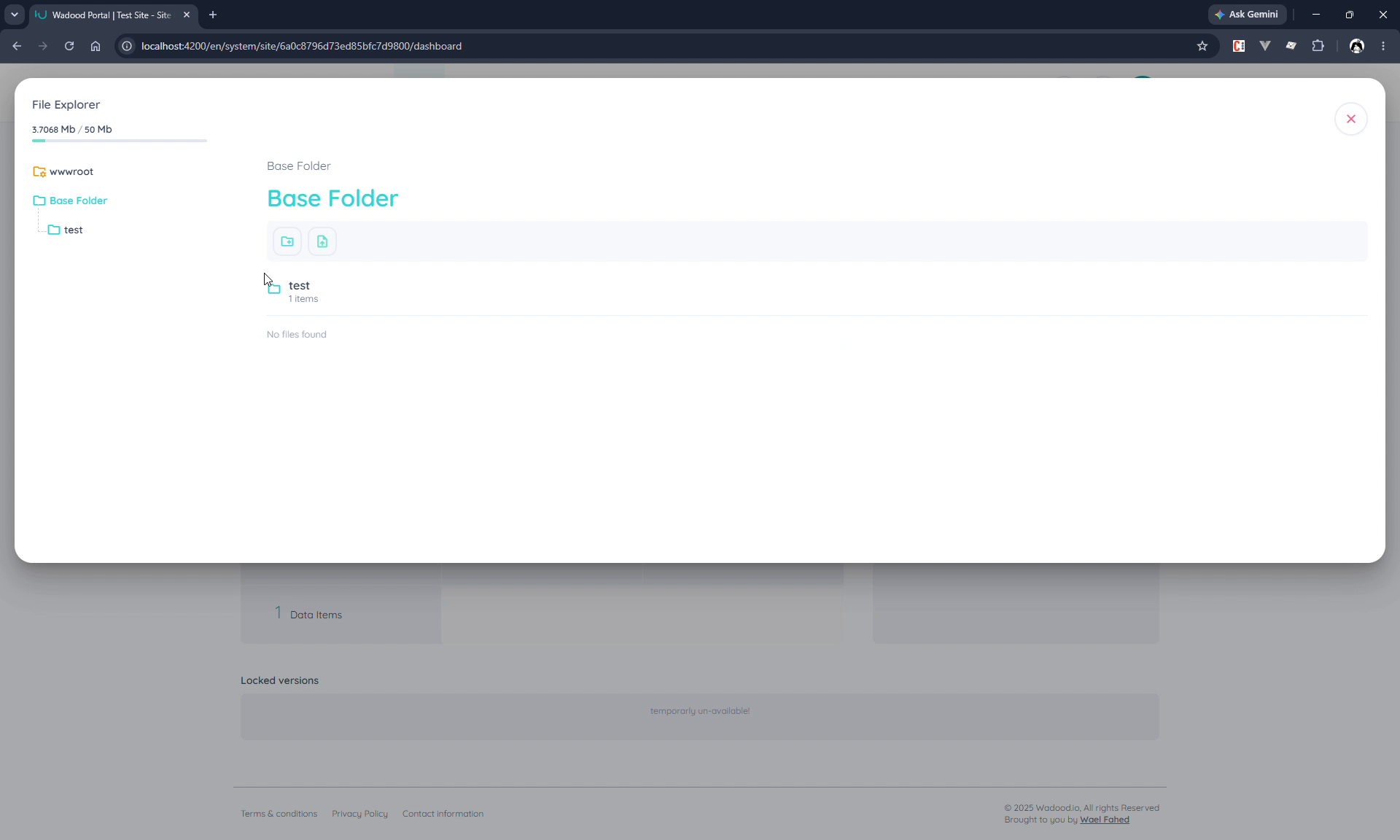
There are two distinct areas, shown in the left tree:
| Area | What it's for |
|---|---|
| Base Folder (and your own folders) | The general asset library — anything you upload here is stored as a web asset and referenced by a generated, signed path. |
| wwwroot | Site‑root files served at the top level of a website, per site + environment (e.g. robots.txt). Managed by super‑admins. See §5. |
A storage meter at the top shows how much of your quota is used (e.g. 3.7 Mb / 50 Mb). Uploads count against it; deletes free it up.
2. Prerequisites
File Explorer uses the files privilege group:
| Action | Privilege |
|---|---|
| View files & folders | Can View Files (CVF) |
| Add folders / upload files | Can Add Files (CAF) |
| Rename / move folders | Can Edit Files (CEF) |
| Delete folders / files | Can Delete Files (CDF) |
The wwwroot environment‑root folders are only visible and creatable to super‑admin roles; regular admins work within the normal folder tree.
3. Working with folders
Select a folder in the left tree (or via the breadcrumb) to see its contents. When a folder is selected, the toolbar above the file list offers four actions: add folder (blue), add file (green), move (yellow), and delete (red).
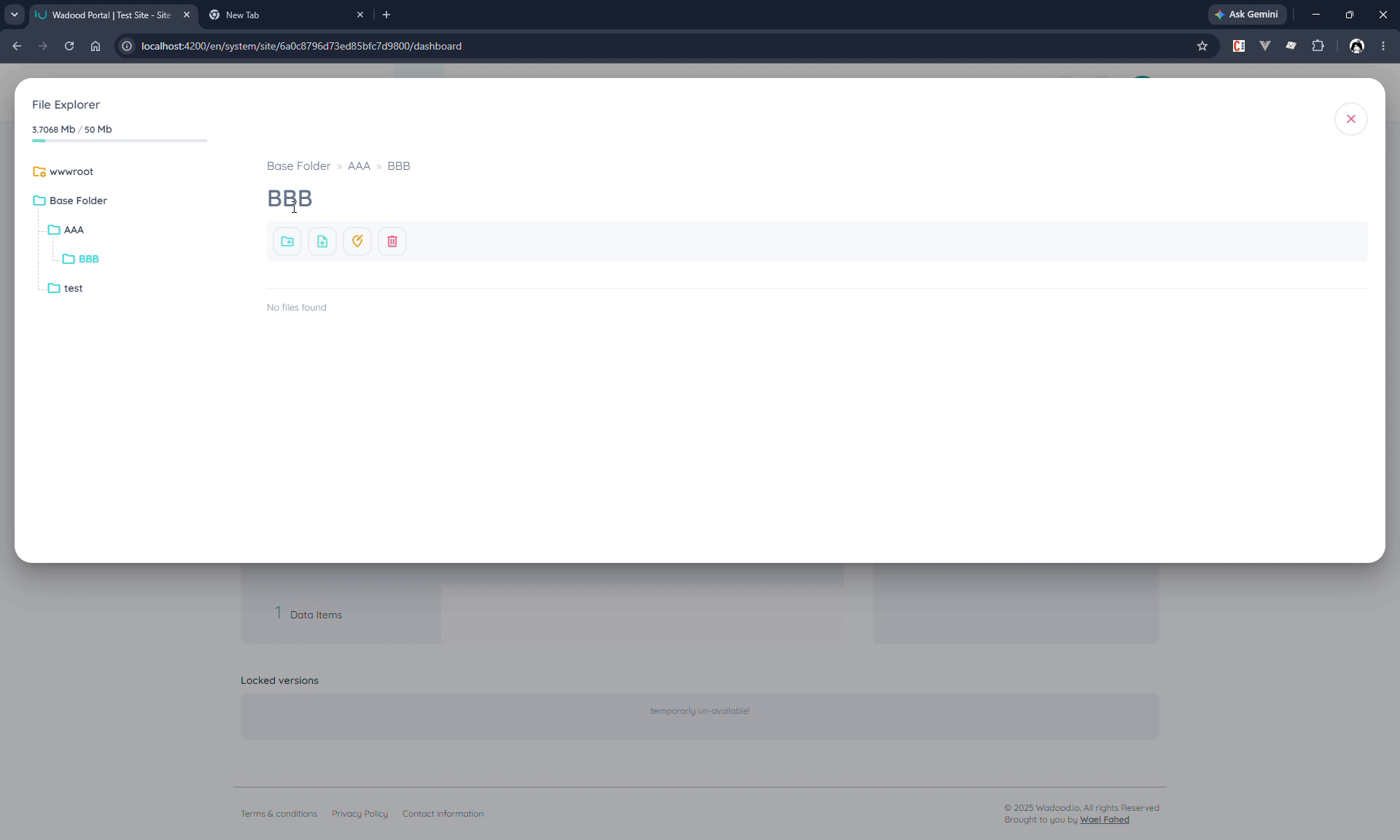
- Create folders recursively. Add a folder (e.g. "AAA"), open it, and add another inside it (e.g. "BBB") — nest as deep as you like. The breadcrumb (e.g. Base Folder » AAA » BBB) shows where you are.
- Rename a folder. Renaming is not a toolbar button — click the folder title, edit the text, and click the check to save. (Only admin‑created folders can be renamed — not the wwwroot/root folders.)
- Delete a folder. This removes the folder and everything nested inside it (sub‑folders and files), and the files are removed from storage too. Use with care.
Moving a folder
The yellow button (the "move" / location icon) moves the selected folder somewhere else in the tree. Clicking it switches the explorer into a move mode:
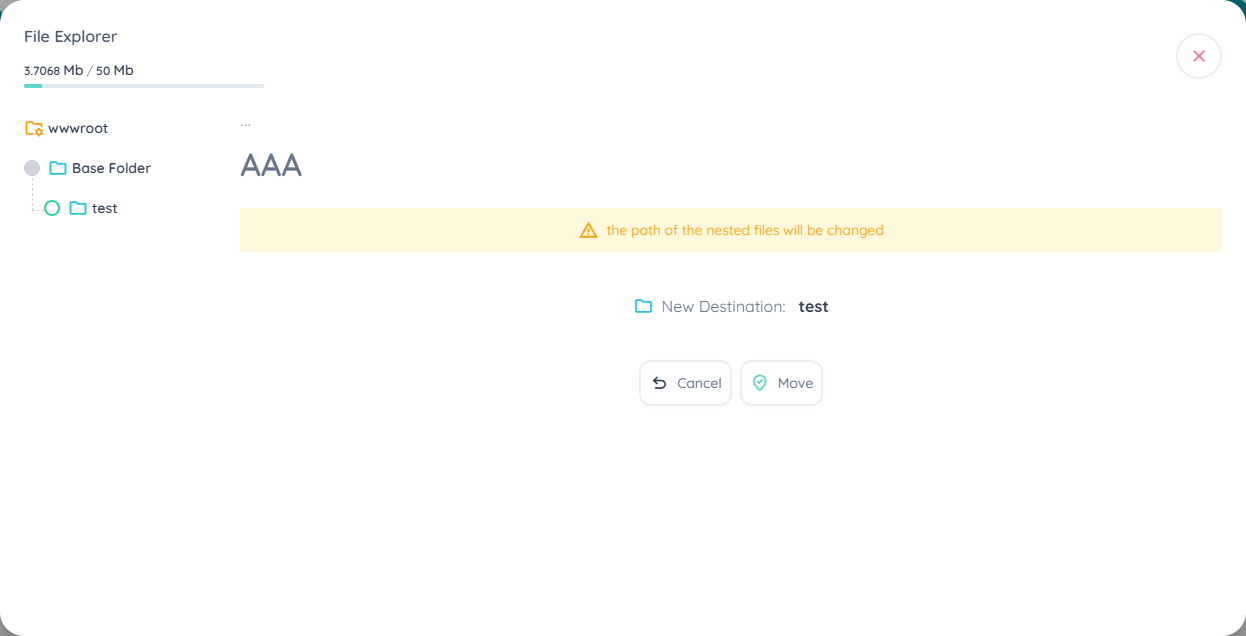
- A warning appears: "the path of the nested files will be changed" (see the caution below).
- The left tree now shows the eligible destinations, each with a radio selector — pick where the folder should go. The folder you're moving (and its own sub‑folders) is excluded, so you can't move a folder into itself.
- The panel shows New Destination: <folder> once you've chosen (a destination can also be the root).
- Click Move to confirm, or Cancel to back out without changes.
⚠️ Renaming or moving a folder changes its files' public paths
A library file's public URL contains its folder name (e.g.
…/web-assets/<id>/<folder>/<signature>-<filename>.<ext>). So when you rename a folder or move it to a new parent, the URLs of every file inside it (and in its sub‑folders) change. Any place those files are referenced — pages, layouts, shared elements, styles — will keep pointing at the old path and break until you update them. After a rename/move, re‑copy the new file paths and update everywhere they're used.
4. Working with files
Open a folder and upload files by dragging and dropping them onto the file area, or using the add‑file button. Each uploaded file is listed with a preview tile, its name, and its type:
- Images (PNG, JPEG, WebP, GIF, SVG) show a small thumbnail of the picture, so you can spot the one you need without opening it. The thumbnail is generated when the file is uploaded and does not count against your storage quota.
- Everything else — and an image the platform could not read, or an ICO — shows a type icon instead.
- The name shown is your original file name. The stored name carries a unique signature in front of it (see About the copied path below); hover the row, or open the details popover, to see the full stored name.
Only accepted file types are stored (others are skipped on upload):
| Category | Types |
|---|---|
| Images | PNG, JPEG, GIF, WebP, SVG, ICO |
| Fonts | TTF, OTF, WOFF, WOFF2 |
| Video | MP4, MPEG, WebM, AVI |
| Audio | AAC, MP3/MPEG, WAV, WebM |
| Documents / code | PDF, JSON, XML, PHP, CSS, HTML, JS, TXT |
File details & actions
Click a file to open its details popover — a preview (for images), the file name, size, type, and upload date — with three actions:
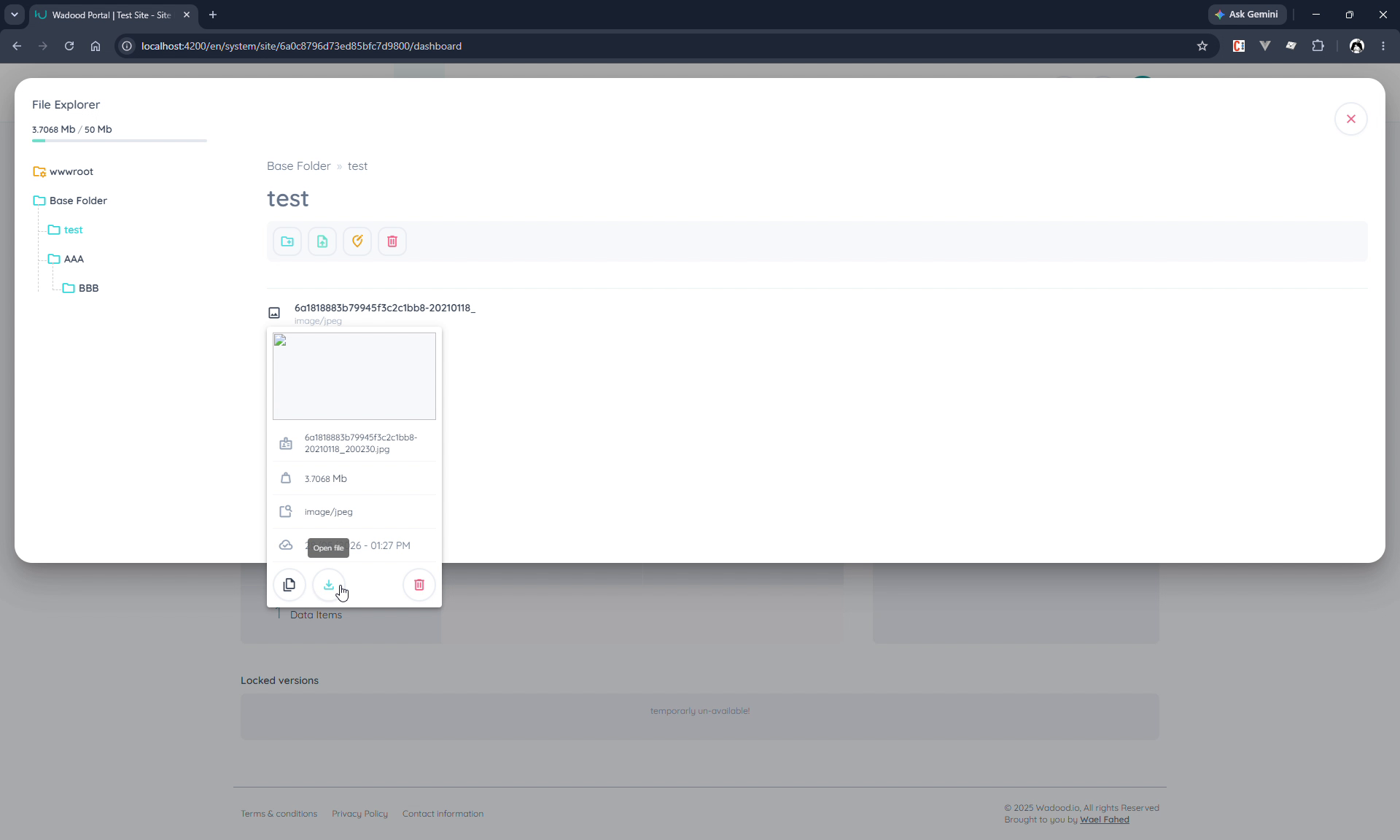
| Action | What it does |
|---|---|
| Copy file path | Copies the file's public URL to the clipboard, to paste wherever you need the asset. |
| Download / Open | Opens or downloads the file. |
| Delete | Removes the file from the library and from storage (frees quota) — for an image, its thumbnail is removed with it. |
About the copied path: library files are stored as web assets with a generated name — the path looks like
…/web-assets/<id>/<folder>/<signature>-<filename>.<ext>. The signature keeps uploads unique, so two files with the same original name don't collide.
5. wwwroot — site‑root files
The wwwroot area is for files that must live at the root of a website rather than under the web‑assets path. Select wwwroot in the tree to see your sites and their environments.
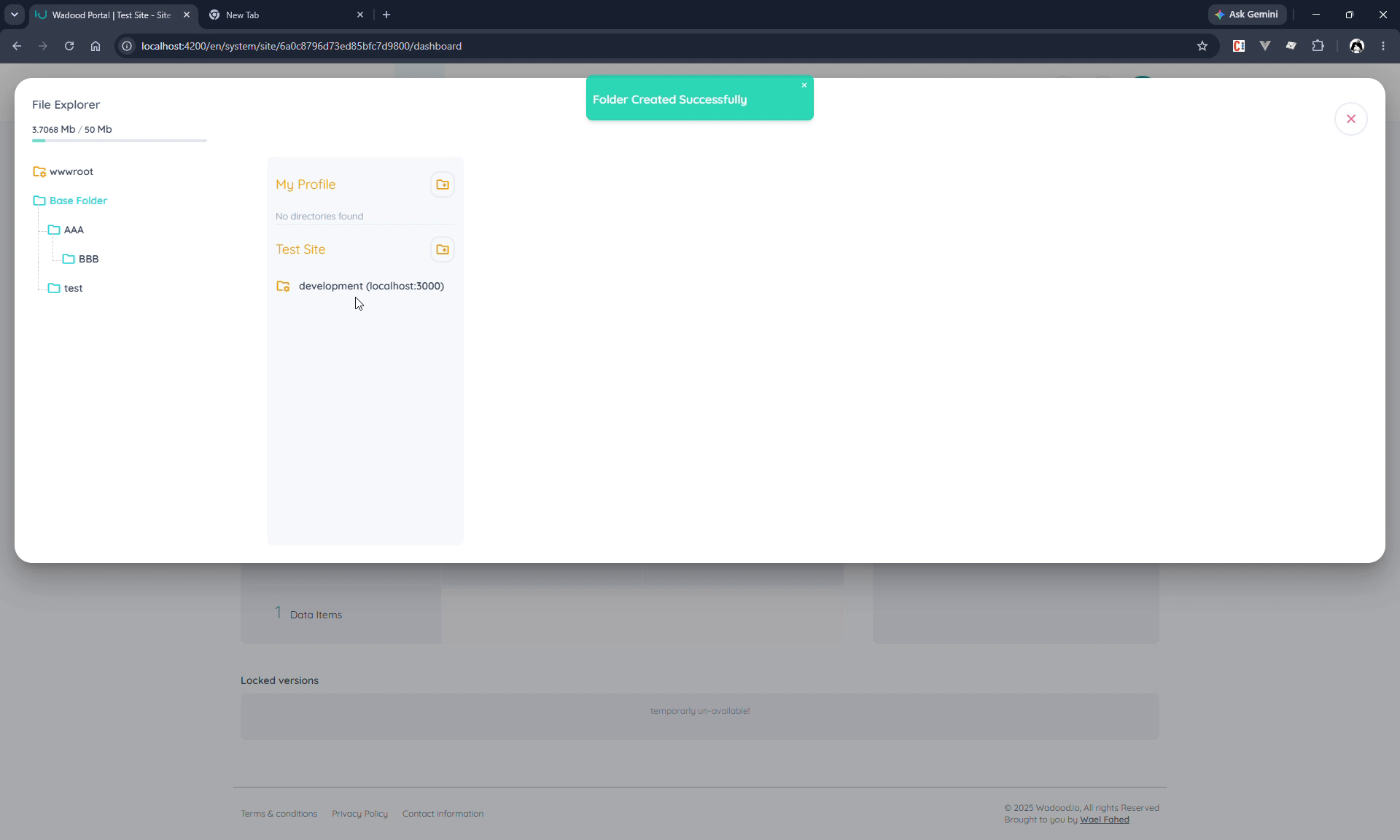
- A super‑admin creates a root folder per site + environment (e.g. Test Site → development). Each site/environment can have one such root folder.
- Files uploaded here are stored plainly (under
client/<environment>/<filename>, no signature), so they're served directly at the site root. - Example: upload
robots.txtinto a site's development root, and it's reachable athttps://<that-site>/robots.txt. The same applies to other root‑level files (e.g.sitemap.xml, verification files).
The difference from the library: wwwroot files keep their exact name and live at the domain root; library (web‑asset) files get a signed path under
web-assets.
6. Tips & common pitfalls
- Renaming or moving a folder breaks existing file links. The folder name is part of each file's public path, so a rename/move changes the URLs of everything inside it. Update the references in pages, layouts, shared elements, and styles afterwards (re‑copy the new paths).
- Deleting a folder cascades. Removing a folder deletes all nested folders and files (and their storage). Double‑check before deleting a populated folder.
- Unsupported types are silently skipped. If a file doesn't upload, check it against the accepted‑types list above (fonts are recognised by extension:
.ttf/.otf/.woff/.woff2). - Use Copy file path rather than typing asset URLs by hand — the generated signature path isn't guessable.
- Put root‑level files (robots.txt, etc.) in wwwroot, not the library — only wwwroot serves them at the domain root, and that area is super‑admin managed.
- Watch the storage meter. Uploads consume your quota; delete unused assets to reclaim space. Image thumbnails are free — the meter counts only what you upload.
- Thumbnails are previews, not assets. Copy file path always gives the original image's path; the small preview exists only to help you find a file in the list.
- Root folders can't be renamed — only the folders you create.
- The Starters folder is created by applying a starter template, and the starter's pages point at the files in it by path — so deleting those files, or renaming or moving the folders, breaks the pages that use them.
- Form submission attachments are not here. Files that visitors upload through your forms are stored separately and managed from the form's Submissions page; they count against your media storage but never appear in the File Explorer, and are deleted with the submission they belong to.