Appearance
Starter templates
Module: Sites — the Starter Template tab, and the panel on an empty dashboard or Pages list Where to find it: Sites → Edit (pencil) on a site → Starter Template tab. Also offered on an empty site dashboard and an empty Pages list (Section 3). Scope: Per site, one environment at a time. Who should read this: Administrators who want to start a site, or start an environment over, from a ready‑made design instead of an empty page list.
1. Overview
A starter template is a complete, ready‑made site — pages, layouts, shared elements, menus and forms — that Wadood builds into one environment of your site, in your site's languages. You pick one from a gallery, read exactly what applying it will do, apply it, and land on a working site you can edit.
One idea explains most of what the screens tell you:
The content arrives published — the environment stays switched off
Everything a starter brings arrives published, so every page previews correctly in the page builder straight away. At the same moment, the environment it lands in is switched off (unpublished), and it stays off until you turn it on. Nothing appears to your visitors by surprise.
A starter never merges with what is already there. Applied to an environment that already holds content, it replaces that content — and the confirmation dialog says so, and asks you to confirm, before anything happens (Section 5). Your other environments are never touched.
2. Prerequisites
| You need… | Why |
|---|---|
Can Edit Sites (CES) in your role | Applying a starter changes a site. Without it you don't see the empty‑state panels, and the apply is refused. |
| Access to the site and to the target environment | Granted per user under Users → Granted sites — see Users. |
| A super‑admin role — only when the target environment already has content | Replacing existing content is a super‑admin action, like importing a site. Applying to an empty environment needs only CES. |
| Enough media storage for the starter's files — only when it has files | The files are copied into your file manager and count toward your storage (Section 7). A starter with no files needs no storage. |
| The site's languages and at least one environment | The starter adapts to your site's languages (Section 6) and lands in one of your environments. |
3. Where to find starters
The same gallery opens from three places. Whichever you start from, every step after it is the same.
3.1 The Starter Template tab
On Sites, click Edit (pencil) on the site and open the Starter Template tab. On a new site, the tab appears with the other tabs once you have saved Basic Info — see Creating a site.
The tab is always there, whatever the site holds. Use it when the environment you want to start over already has content.
3.2 The empty site dashboard
On the site dashboard, a Start from a starter template panel with a Browse starters button appears above the figures when:
- every content count the dashboard shows for the selected environment is zero;
- your role can see pages — Can View Pages, or a super‑admin (without it, the dashboard cannot tell an empty environment from one whose pages are hidden from you);
- your role includes Can Edit Sites.
The dashboard only counts what your role lets you see, so content hidden from you does not stop the panel from appearing. That is safe: the confirmation dialog always states what the environment really holds before anything happens.
3.3 The empty Pages list
On the Pages list, the same panel appears when the selected environment has no pages — on the Available view, with the search box empty, once the list has loaded — and your role includes Can Edit Sites. A search with no results, or an empty Deleted view, does not show it.
The two panels go away on their own: the dashboard's once the environment has any content you can see, the Pages list's once the environment has a page. From then on, use the Starter Template tab.
An AI assistant connected through the MCP connector can also browse the starters and apply one for you — to an empty environment only; replacing content is always done here, in the Starter Template tab.
4. Choosing a starter
4.1 The gallery
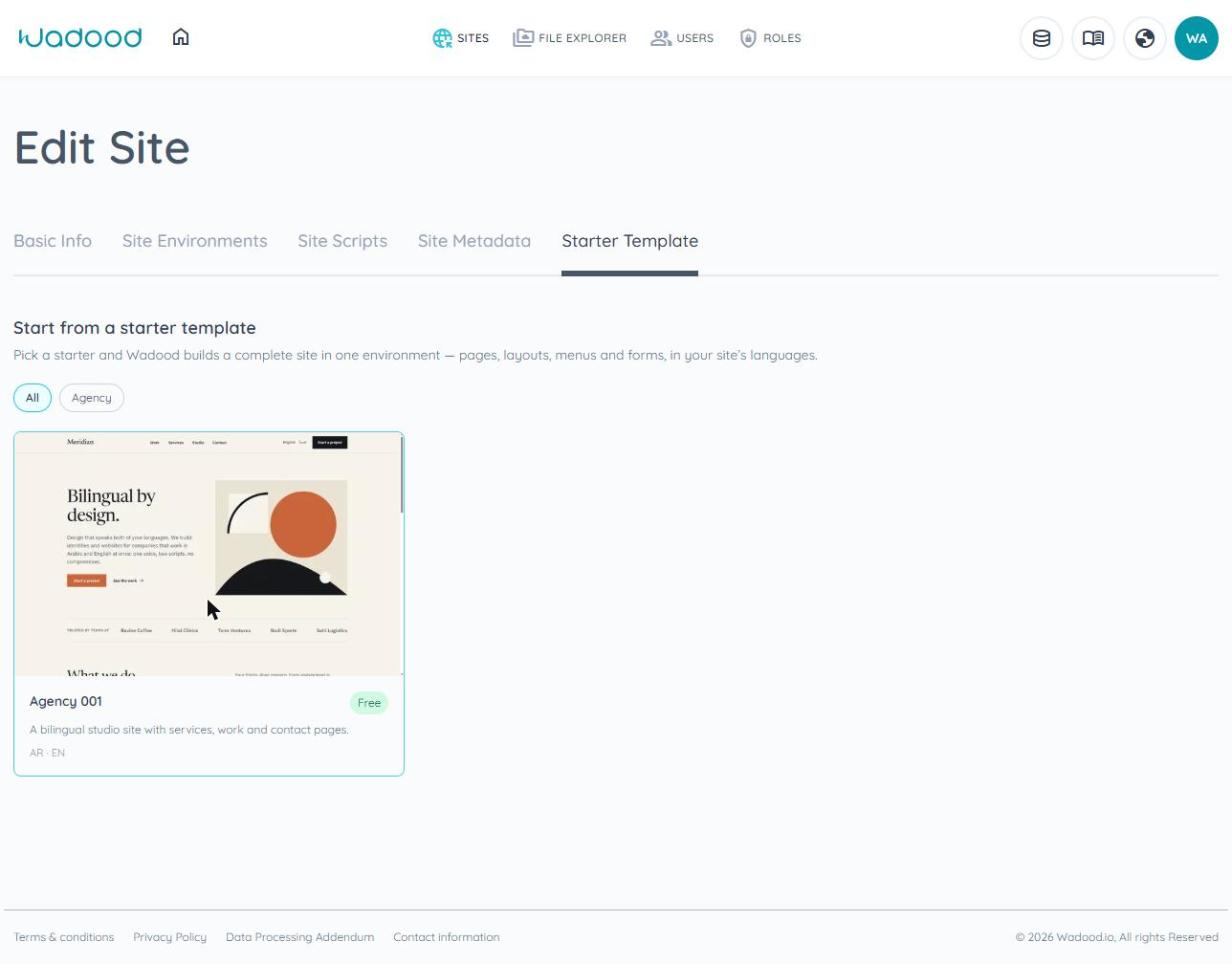
The gallery shows the starters Wadood offers, as cards. When starters are grouped into categories, a row of buttons above the cards — All first — narrows the list to one category.
Each card shows:
- a picture of the starter;
- its name and its price label;
- a short summary;
- the languages it ships, as short codes (for example
EN · AR).
When there are more starters than the gallery shows at once, a line under the cards says how many are shown out of how many — use the categories to narrow the list.
Click a card to open its details.
4.2 The detail dialog
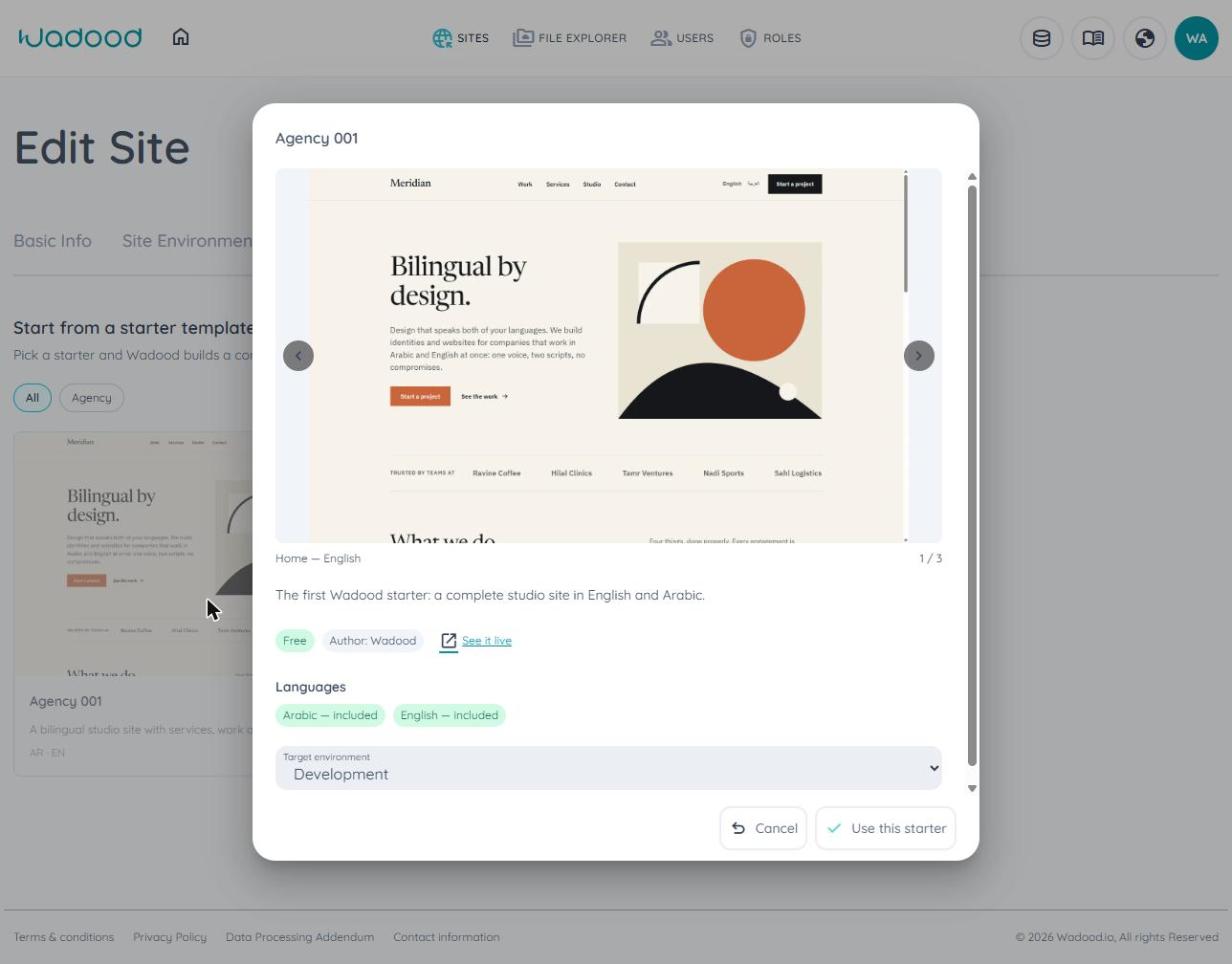
The dialog carries the starter's name as its title and shows:
- screenshots, when the starter has them — step through them with the arrows;
- the description;
- the price label, and the author when one is named;
- See it live — opens the starter's live demo site in a new tab;
- Languages — one badge per language of your site, saying what that language will get: included (the starter has content in it) or copied for you to translate (it doesn't — Section 6). A language the starter has but your site doesn't use is not listed here; the confirmation dialog mentions it;
- Target environment — the environment the starter will be applied to, with the reminder "The starter is applied to this one environment. Production is never touched unless you choose it."
The target environment is chosen for you, and you can change it:
- opened from the dashboard or the Pages list, it is the environment you were looking at;
- opened from the Starter Template tab, it is Development — or, on a site without Development, the first environment in the list.
On a site that has no environment yet, there is nothing to choose: in place of the list the dialog says "Add an environment first, then come back to pick a starter.", with a link to the site's Site Environments tab, and Use this starter stays unavailable. A brand‑new site is in exactly that state when you first open the Starter Template tab — add an environment (Creating a site), then come back.
Click Use this starter to see what applying it would do. Nothing has changed yet.
5. The confirmation dialog
Use this starter asks the platform what applying the starter to that environment would do, and the Apply this starter template dialog shows the answer. It is built from your actual site and the actual starter, not a fixed notice. From top to bottom:
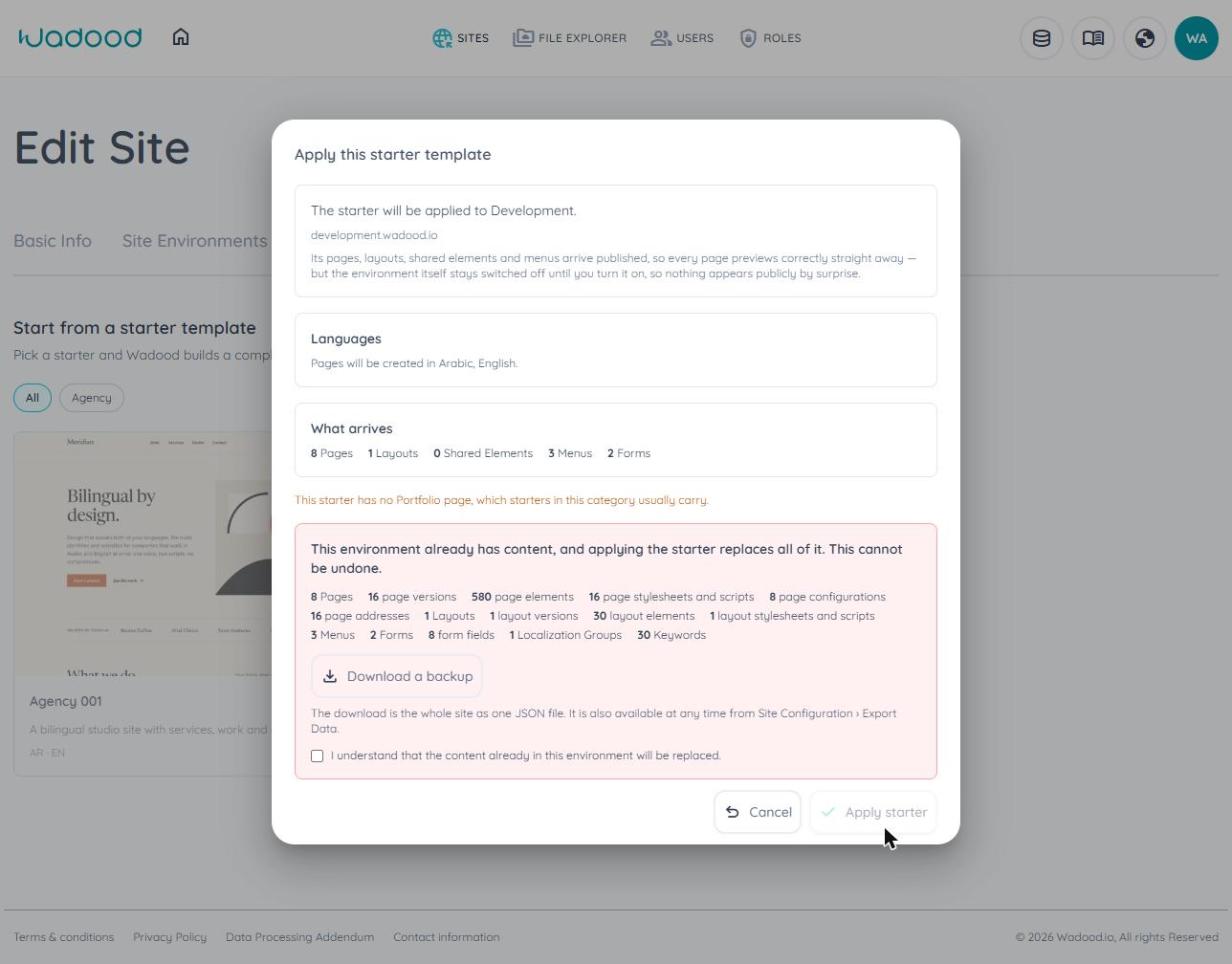
The target. "The starter will be applied to Development." — with the environment's hostname under it, when it has one.
Published content, switched‑off environment. "Its pages, layouts, shared elements and menus arrive published, so every page previews correctly straight away — but the environment itself stays switched off until you turn it on, so nothing appears publicly by surprise." When the environment's hostname is answering visitors today, one more line warns that it "will show the site-down page until you switch this environment back on."
Languages. One sentence per outcome of the language rule: the languages pages will be created in, the languages that will start as copies, and the starter's languages that will not be imported (Section 6).
What arrives. How many Pages, Layouts, Shared Elements, Menus and Forms the starter brings. When it brings media files, one more line gives their number, their total size and the storage you have left: "Media files: 14, 2.3 MB in total — 480 MB of storage left."
Warnings, when there are any — for example, a page the starter cannot give you in one of your languages. A warning does not stop the apply.
Only when the environment already has content — the replace warning. "This environment already has content, and applying the starter replaces all of it. This cannot be undone.", followed by what the environment holds today (for example 12 Pages, 31 page versions, 4 User Submissions). Then:
- Download a backup — downloads the whole site as one JSON file: the same file Export Data produces on Site Configuration (Exporting your data);
- a tick box, "I understand that the content already in this environment will be replaced." — Apply starter stays unavailable until you tick it. When the environment holds form submissions, the sentence names them, with their number: "I understand that the content already in this environment — including its form submissions (4) — will be replaced." They are your visitors' enquiries, and the backup is the only way to keep them (see the warning below).
If you are not a super‑admin, the dialog says instead: "Only a super-admin can replace an environment that already has content. Ask one to apply this starter for you." The backup button and the tick box are not offered, and Apply starter stays unavailable.
Click Apply starter to go ahead, or Cancel to leave everything as it was.
If the starter cannot be applied to this environment, the dialog opens with "This starter cannot be applied to this environment." at the top, the reasons under it, and no Apply starter button — see Section 9. Everything is checked again when you click Apply starter; if something changed since the dialog opened, the new reason appears at the top of the dialog and the Apply starter button goes away.
Replacing is permanent — Wadood keeps no copy
Replacing takes the environment's form submissions with it — your visitors' enquiries in that environment are deleted along with the pages and forms, and they cannot be recovered. The backup file does contain them, so download it first if there is any chance you will want them.
Nothing of what a starter replaces is kept on our side; the backup you download is the only copy. It holds the current version of each page, not their earlier versions. To restore from it, Import Data on Site Configuration rebuilds the whole site from the file (Importing a site).
6. The language rule
Your site's languages are the contract, and the starter adapts to them. Every page of the starter is created in every language your site uses, and each language falls into one of three cases:
| Case | What happens | Example, in the dialog's words |
|---|---|---|
| Your site and the starter both have the language | The starter's content in that language is used as it is. | Site English + Arabic, starter English + Arabic: "Pages will be created in English, Arabic." |
| The starter has a language your site doesn't use | That language is not imported. | Site English, starter English + Arabic: "The starter also has content in Arabic, which your site does not use, so it will not be imported." |
| Your site has a language the starter doesn't | Those pages start as copies of the starter's default language, for you to translate. | Site English + French, starter English + Arabic with English as its default: "This starter has no content in French, so those pages will start as copies of the English ones for you to translate." |
A copy is the default language's page as it stands — its content, its address and its title — placed in the new language and published like everything else. Localization keywords follow the same rule. Layouts and shared elements are not created per language: each arrives once and serves all of them.
To translate a copy, edit that language's version in the page builder like any other — see Versions & languages.
7. What arrives, and where it goes
What a starter brings
The confirmation dialog counts five kinds of content, but a starter can carry more than those five:
| Content | Counted in the dialog |
|---|---|
| Pages — each with a version per language, its addresses and its metadata | ✅ Pages |
| Layouts | ✅ Layouts |
| Shared elements | ✅ Shared Elements |
| Menus | ✅ Menus |
| Forms, with their fields | ✅ Forms |
| Localization groups and their keywords | — |
| Data Store schemas, categories and items | — |
| Option groups | — |
| Site scripts for the environment | — |
| Media files the pages use | its own line |
A starter never carries form submissions: its forms arrive empty.
The starter's home page becomes the environment's default page, and the environment's (Not‑found) page and (Site‑down) page are set to the starter's own — the site‑down page is left unset if the starter has none. Everything arrives published. The content counts toward your data storage like anything you build yourself.
Media: the Starters folder
The files the starter uses are copied into your file manager: into a folder named Starters, and inside it a folder for that starter. They are your files — they count toward your media storage like any upload (Plan & billing).
The starter's pages point at these copies by their path, so leave them where they are: deleting a file, or renaming or moving these folders, breaks the pages that use it. Applying a starter again copies its files again; the earlier copies stay in the folder, and still count toward your storage, until you delete them.
What stays as it was
- Your other environments — untouched.
- The site — its name, favicon, languages, environments and site metadata are untouched.
- The environment's own settings — its hostname, domain verification and protected access are untouched. Only three things about it change: it is switched off, and its (Not‑found) and (Site‑down) pages now point at the starter's.
- Files already in your file manager — untouched; the starter only adds its own.
8. After applying
When the apply finishes you land on the Pages list of the environment the starter was applied to — or, if you started from the Pages list, you stay on it, switched to that environment's tab. A Starter applied banner sits at the top:
Starter applied to Development — pages: 6, layouts: 2, menus: 1, forms: 1. Everything arrives published.
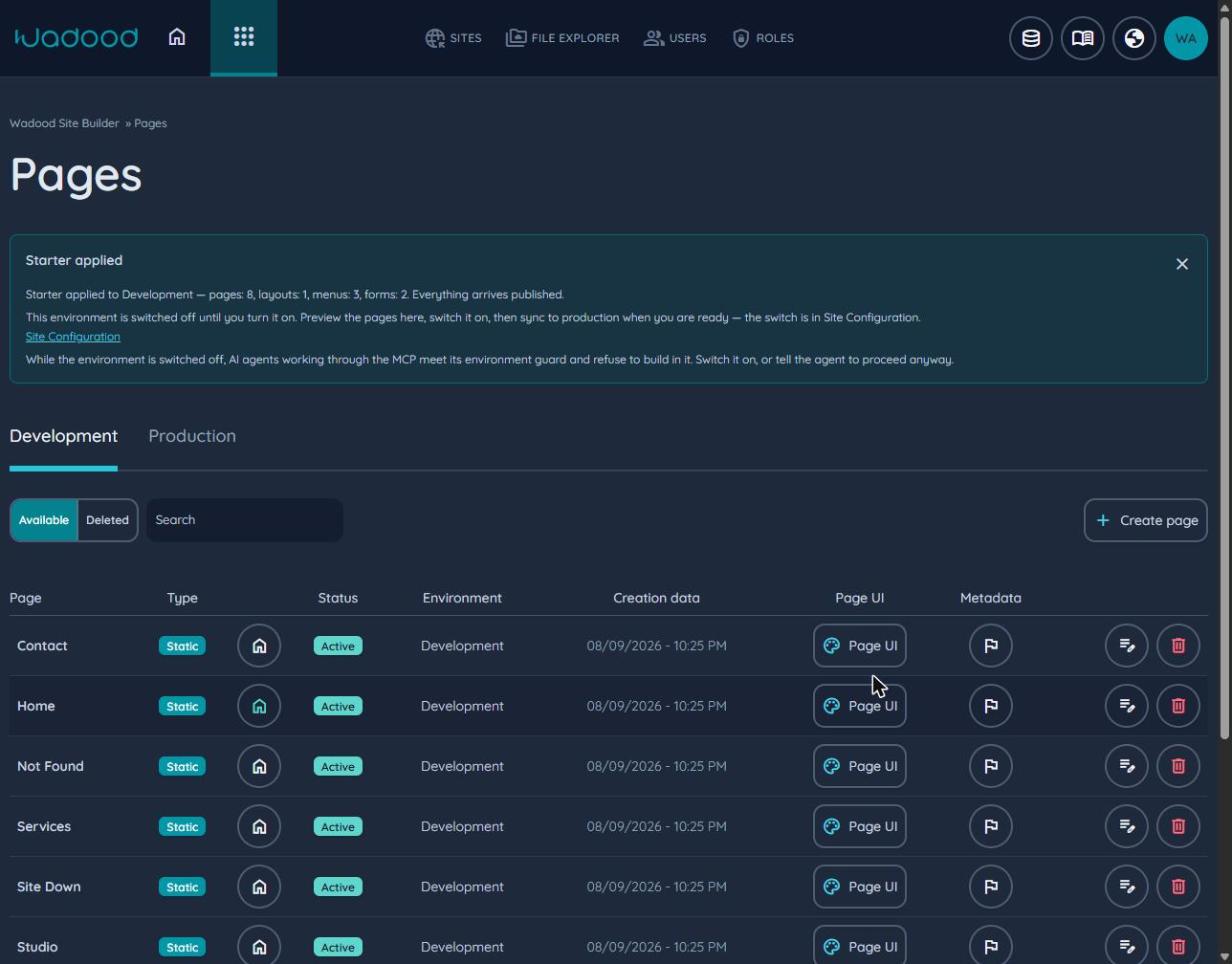
Under the summary, the banner reminds you that the environment is switched off until you turn it on, links to Site Configuration where the switch is, and notes that AI agents working through the MCP connector refuse to build in the environment while it is switched off — switch it on, or tell the agent to proceed anyway. Close it with ×. The banner is shown once: reloading the page does not bring it back.
What to do next
- Review the pages. They are published, so each one previews correctly in the page builder.
- Translate the copies, if the dialog said some languages would start as copies (Section 6).
- Switch the environment on when you are ready: Site Configuration → select the environment — its status reads Unpublished — → Publish (Site Configuration). On a brand‑new site, activate the site itself too — a new site starts inactive (Activating a site).
- Applied to Development? Once applied, a starter's content is ordinary content: move it to Production with the Sync Manager like anything else. Synced pages, layouts and shared elements arrive unpublished in the target and are published there (Versions and the publish step).
9. If a starter cannot be applied
Some reasons appear inside the confirmation dialog, which then has no Apply starter button; others appear as a message at the top of the screen, and the dialog stays open.
| What you see | What it means | What to do |
|---|---|---|
| In the dialog: "This starter's files need more media storage than your account has left. Free up space in the file manager or upgrade your plan, then try again.", with what the starter needs and what is left. Or, if your storage ran out at the last moment, the message "There is not enough media storage left on your account for this starter's files." | The starter's files are larger than your remaining media storage. | Delete files you no longer need in the file manager, or add media storage in Plan & billing, then open the starter again. |
| In the dialog: "Only a super-admin can replace an environment that already has content. Ask one to apply this starter for you." | The environment already has content, and replacing it is a super‑admin action. | Ask a super‑admin to apply it, or choose an environment that is still empty. |
| A message: "This environment already has content. Confirm that it will be replaced before applying the starter." — or, if you are not a super‑admin, "This environment already has content. Only a super-admin can replace it with a starter." | Content reached the environment after the dialog opened, so the dialog never asked you about replacing it. | Cancel and open the starter again: the dialog now shows the replace warning (and, for a super‑admin, the tick box). |
| A message: "This starter template is not available to apply. Choose another starter from the gallery." | The starter was withdrawn after the gallery loaded. | Choose another starter. |
| A message: "The starter could not be applied. Check this environment's content before trying again; any media files that were copied are in the Starters folder of your file manager." | The apply failed part‑way. If it failed while replacing content, the environment may hold part of the starter. | Check the environment's Pages list before you try again. Files copied before the failure are in the Starters folder and count toward your storage; a new attempt copies the files again. |
| In the dialog, a reason ending "…Choose another starter for now." | Something is wrong with the starter itself, not with your site. | Choose another starter. |
| In the dialog: "This starter's pages would not be complete in this site's languages. The details below say which pages are affected." or "This starter's content cannot be imported into this environment. The details below say why." | The starter doesn't fit this site or this environment as they are. | Read the details under the reason — they name the pages, or the cause. |
| A message: "This environment was not found on this site." | The environment was removed after the screen loaded. | Reload the page and choose another environment. |
| In the detail dialog, instead of the environment list: "Add an environment first, then come back to pick a starter." | The site has no environment yet — a starter always lands in one. | Follow the Site Environments link, add an environment, then open the starter again. |
10. Reference
| Permission | Can Edit Sites (CES), plus access to the site and the target environment |
| Replacing an environment that has content | A super‑admin, who ticks the acknowledgement in the confirmation dialog |
| Where a starter lands | One environment per apply, chosen in Target environment |
| What is replaced | Everything the target environment holds: pages and every version of them, layouts, shared elements, menus, forms and their submissions, localization, Data Store content, option groups, and the environment's site scripts |
| What is set on the environment | Switched off (unpublished); its (Not‑found) and (Site‑down) pages point at the starter's |
| What is never touched | Other environments; the site's name, favicon, languages, environments and site metadata; the environment's hostname, domain verification and protected access; files already in your file manager |
| Media | Copied to Starters → the starter's folder in your file manager; counted toward media storage; copied again on every apply |
| Backup | None kept by Wadood — Download a backup in the confirmation dialog, or Export Data on Site Configuration |
| Activity log | "Applied a starter template to an environment", recorded when an apply succeeds — see the dashboard's Logs |