Appearance
Pages (Part 2) — Versions & languages
Module: Pages → the page builder (Page UI) Builds on: Pages (Part 1) — creating pages and the builder basics. Who should read this: Administrators who maintain multiple drafts of a page, publish changes safely, and author a page in more than one language.
This part covers page versions (create, clone, lock, active vs. published, delete) and languages (authoring per language, releasing, cloning across languages). Dynamic pages are covered in the next part.
1. Why versions exist
Every page is built as one or more versions. A version is a complete, independent copy of the page's content (its HTML elements, styles, and scripts). Versions let you draft and revise a page without affecting what visitors currently see — you keep the live version untouched, build a new one alongside it, and switch over only when you're ready.
Two independent states govern a version (see the version dialog below):
| State | Meaning | Scope |
|---|---|---|
| Active | The version you are currently viewing/editing in the builder. | Per admin — two admins can each have a different active version. |
| Published | The one version shown to live visitors. | Per page + language — exactly one. |
Versions are per language. Each language of a page has its own set of versions (and its own published version). Switching the builder's language switches the version list — see §7.
The first time a page/language is opened in the builder, the system auto‑creates a "First Version" and marks it published.
2. The version manager
In the builder, open the versions control (top‑left, next to the language). It lists the versions for the current page + language.
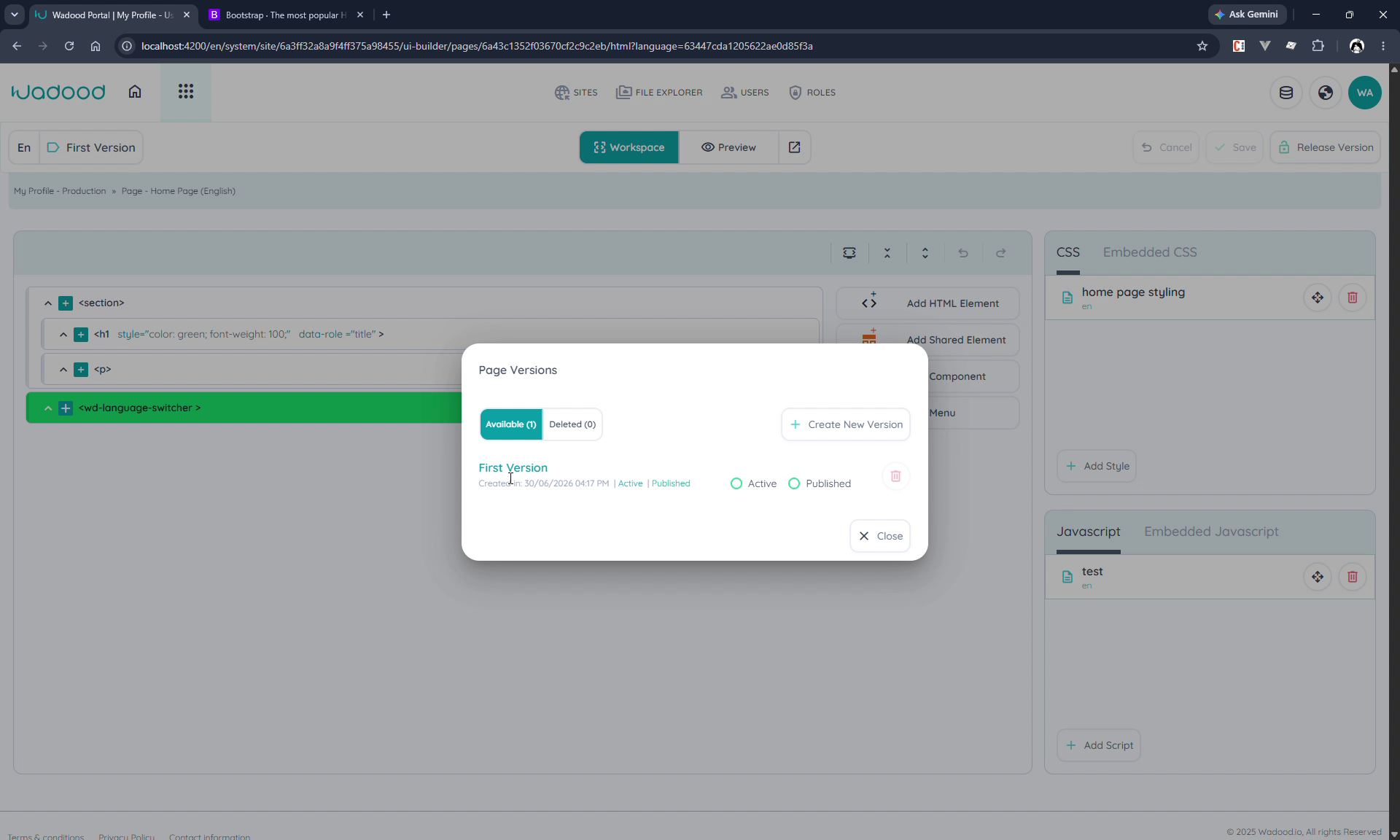
Each row shows the version name, creation date, its Active | Published badges, an Active radio and a Published radio, and a delete action. The Available / Deleted tabs and Create New Version sit at the top.
3. Creating a new version
Click Create New Version. You choose Plain or Cloned:
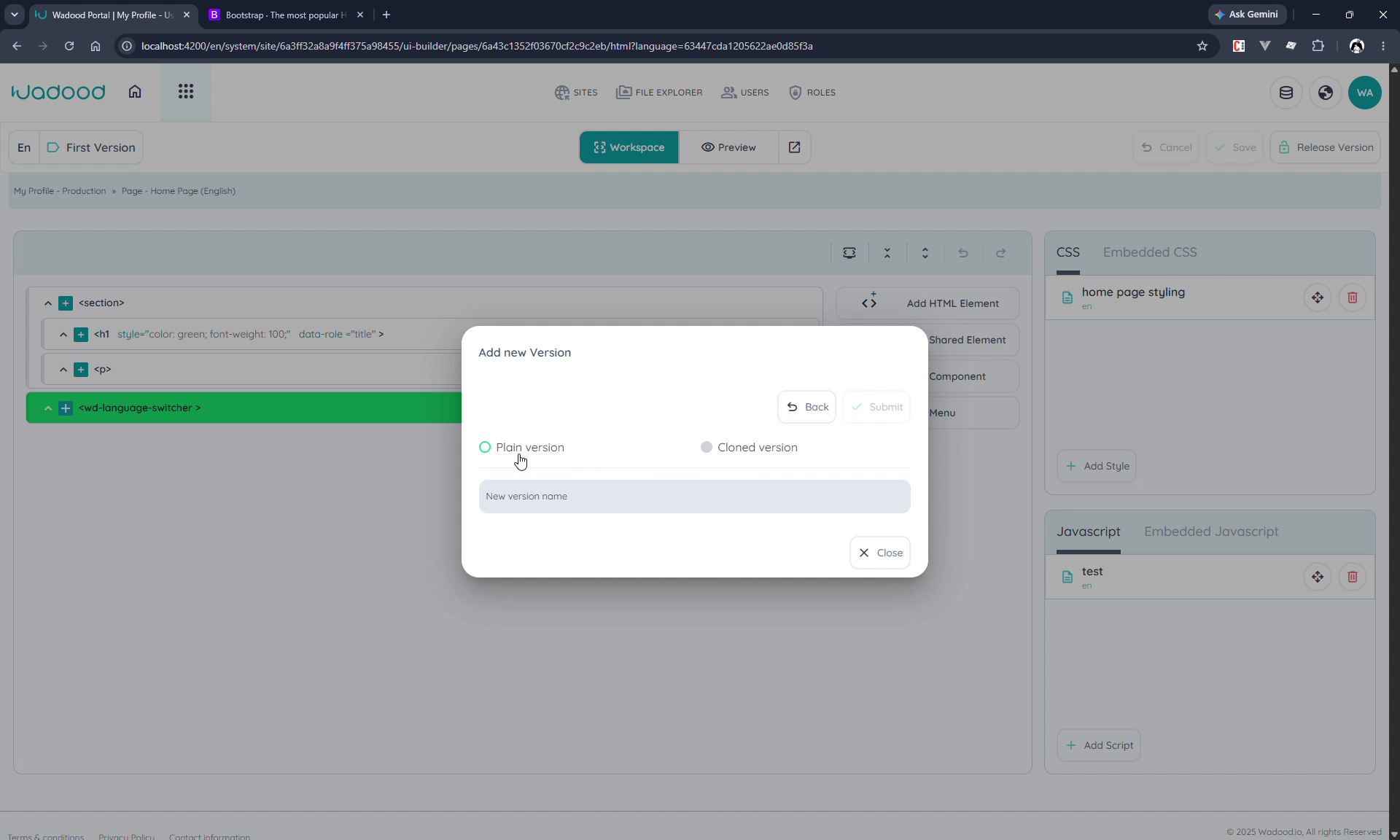
- Plain version — a blank page; you build the HTML/CSS/JS from scratch. Just give it a name.
- Cloned version — start from an existing version's full content. Pick the source, then name it:
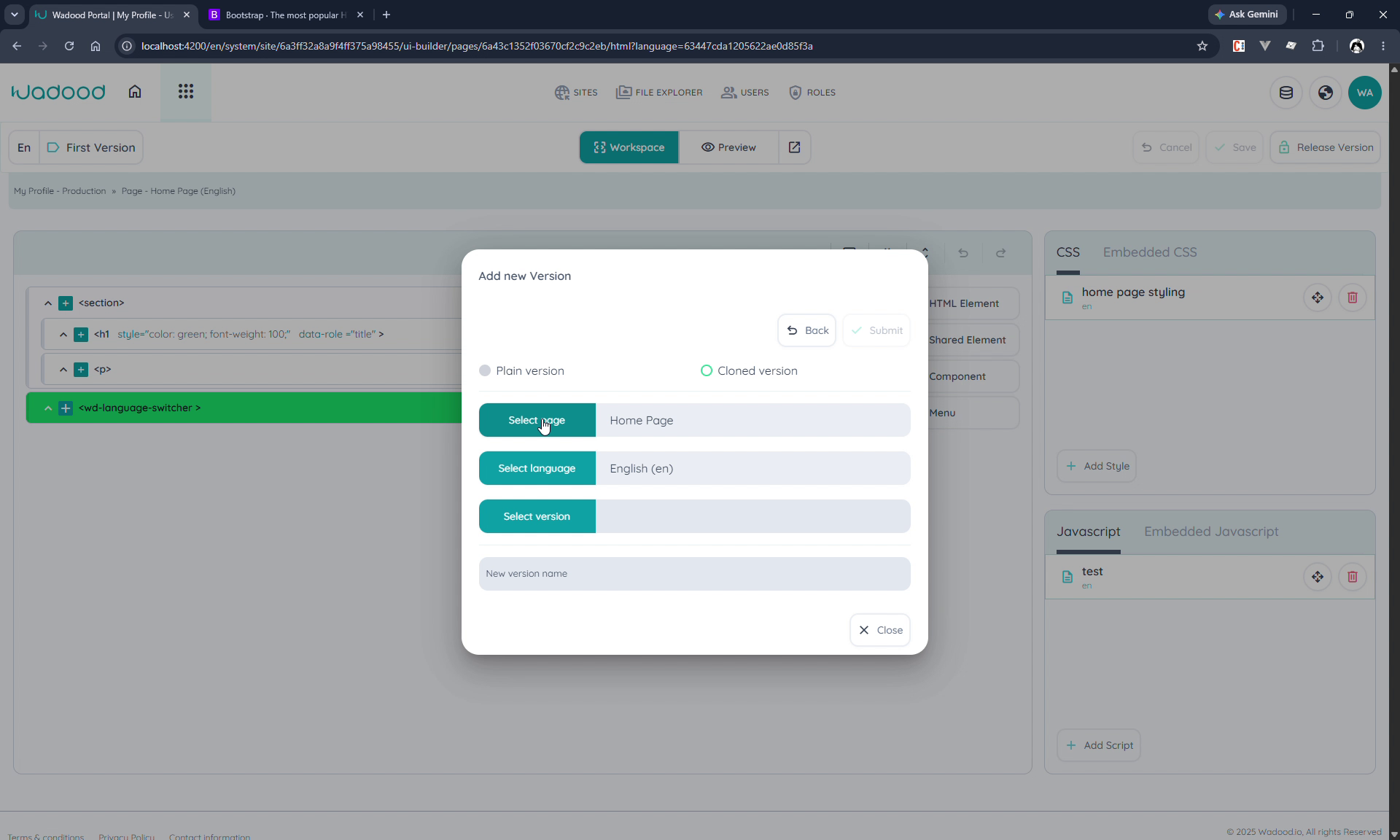
- Select page — defaults to the current page, but you can clone from another page in the site.
- Select language — which language of that page to copy from.
- Select version — which specific version to copy (e.g. the published one — versions show a Published badge to help you pick).
- New version name — e.g. "Second Version".
Submit. The clone copies the source version's elements, styles, and scripts into the new version.
The page/language/version selectors are independent, so you can clone across pages and across languages — a powerful way to reuse a layout (see §7.2).
4. Active vs. published — the key distinction
After creating a version, it becomes your active version (what you see), but the published version is unchanged — visitors still see the old one.
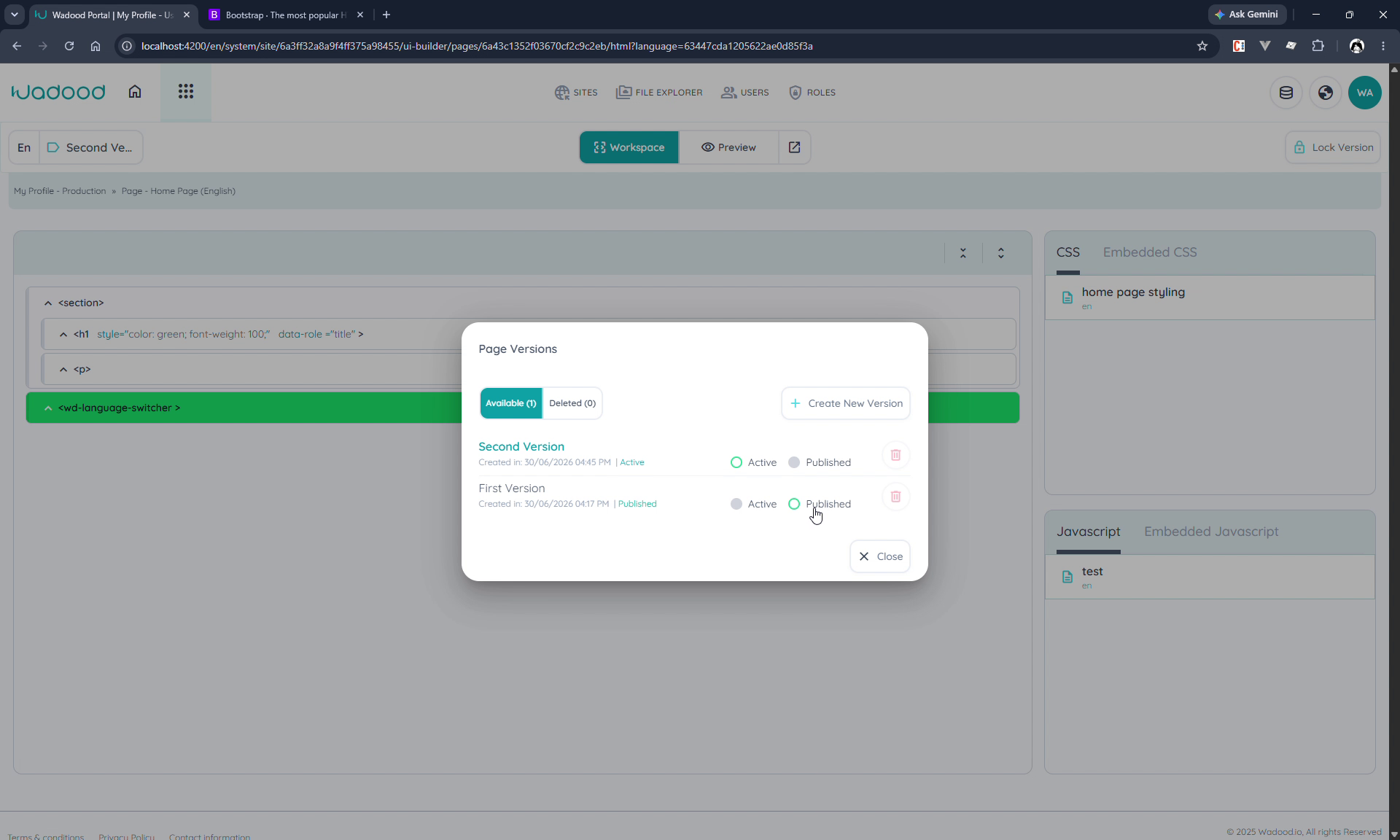
In the example above, Second Version is Active while First Version is still Published. To work with versions:
- Switch Active (the Active radio) to view/compare a different version in the builder — handy to check an older version against a new one. This only changes your view.
- Switch Published (the Published radio) to choose which version goes live. Only one version is published per page + language; selecting a new one automatically unpublishes the previous.
Publishing is deliberate. Building or cloning a version never makes it live by itself — you must set it as Published. (This is also why a synced version arrives unpublished: you publish it in the target.)
5. Editing: lock first, release after
A version is read‑only by default — open it and the builder won't let you change anything. The top‑right button reflects this:
- When unlocked, it reads Lock Version — click it to take the lock and start editing. Only one admin can hold a version's lock at a time, so this prevents two people clobbering each other's work.
- While you hold the lock it reads Release Version — editing is enabled (Add HTML, CSS, JS, move elements, etc.). Click Release Version when you're done so another admin can edit it.
You can't edit a version you haven't locked, and you can only release a lock you own.
6. Deleting versions
Delete a version from the manager's delete action. It moves to the Deleted tab, where you can undo the delete or perform a hard delete (permanent).
You can't delete a version that is Active or Published, nor one that is locked by an admin. Switch active/published away from it (and release any lock) first.
7. Languages
A multi‑language page is authored one language at a time, and — as noted — each language has its own versions and its own published version.
7.1 Switching language
Use the language control (top‑left, e.g. En / Ar) to switch which language you're editing. The version list, content, styles, and scripts all change to that language's.
A language you haven't built yet starts with an empty First Version — you build it independently (Add HTML, shared elements, components, menus, CSS, JS), exactly as in Part 1.
Before switching or handing off, release the version you were editing so the other language/admin isn't blocked.
7.2 Cloning a version across languages
You rarely want to rebuild a page from scratch for each language. Instead, in the target language, Create New Version → Cloned, and select the other language's published version as the source.
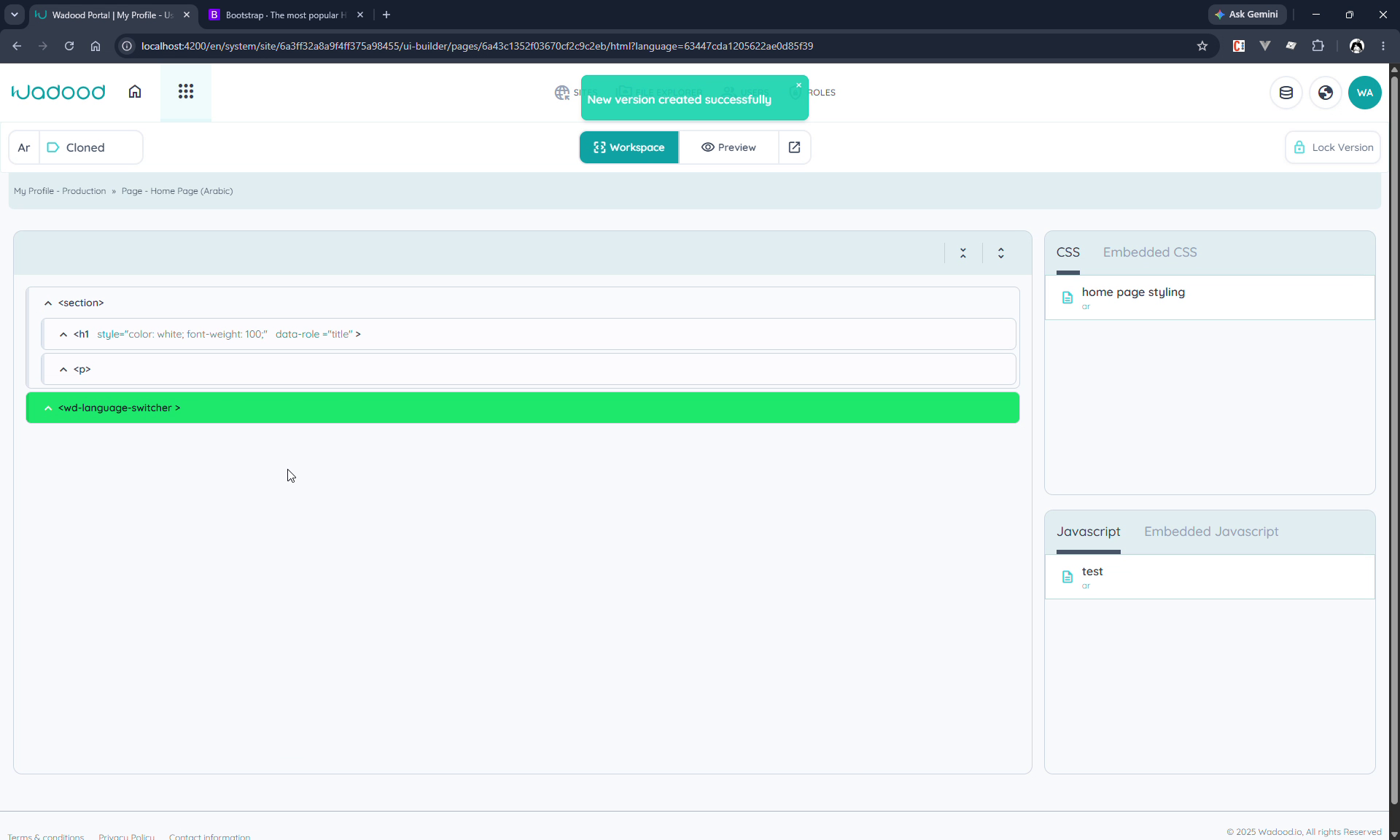
For example, in Arabic you can clone from English → the published ("red") version, name it, and submit — Arabic now has a ready copy of the English layout that you translate/adjust in place, rather than rebuilding it.
8. Tips & common pitfalls
- Active = your view; Published = what the world sees. Changing your active version never affects visitors; only Publish does.
- Lock before editing, release when done. A version is read‑only until you lock it, and you block other admins until you release it.
- Clone instead of rebuild — across versions and across languages — to reuse a layout, then tweak.
- Published/Active/locked versions can't be deleted — move those states away first.
- Pick the right source version when cloning — clone the published one if you want the current live layout (watch the Published badge).
- Publishing is separate from building — and the same applies after a sync: publish the synced version in the target environment.
9. Coming next
The next Pages guide covers dynamic pages — URL parameters, binding a page to a data category, and the differences in the builder when a page is dynamic.